Blog · Networking
Synology reverse proxy: how to set it up in DSM 7, and fix it when it breaks (2026)
At some point every Synology owner ends up with a sticky note that reads :5001 DSM, :8096 Jellyfin, :8123 Home Assistant, :2342 …something?. The Synology reverse proxy is how you throw that note away: one port, one certificate, and friendly names like media.example.com that DSM quietly routes to the right app. Here's how to set it up properly in DSM 7, the four settings every guide forgets, a table of fixes for when it breaks — and the one thing a reverse proxy cannot do for you.
TL;DR
- Where: Control Panel → Login Portal → Advanced → Reverse Proxy → Create. Built into DSM; no package needed.
- A rule = source → destination.
HTTPS media.example.com:443→HTTP localhost:8096. DSM's nginx matches the hostname and forwards. - Don't forget: a certificate covering the hostname, the WebSocket custom header, HSTS, and an Access Control Profile for anything admin-ish.
- It doesn't open your NAS to the internet. You still need port 443 forwarded and a real public IP. Behind CGNAT, it's a beautifully organised building with no front door.
What the Synology reverse proxy actually is
A reverse proxy sits in front of your apps and forwards each incoming request to the right one based on the hostname (and port) the visitor asked for. DSM ships one: it's the same nginx that already serves the DSM web UI, with a friendly form on top. Nothing to install, nothing to keep in a container.
What you get out of it:
- One port instead of ten. Forward 443 once; every app hides behind it.
- Real HTTPS everywhere. The proxy terminates TLS with DSM's certificates, so apps that only speak plain HTTP (most containers) still get a padlock.
- Names instead of numbers.
media.example.combeats203.0.113.24:8096— for you, and for the family member you'll otherwise be texting port numbers to. - One place to control access. Access Control Profiles let you allow, say, your LAN only for the admin panels.
You'll need two things first: a domain or hostname that points at your public IP (your own domain, or a free synology.me name — see Synology DDNS setup), and port 443 forwarded to the NAS. If you can't do the second one, skip to the CGNAT section before you spend an evening on this.
How to set up a reverse proxy rule in DSM 7
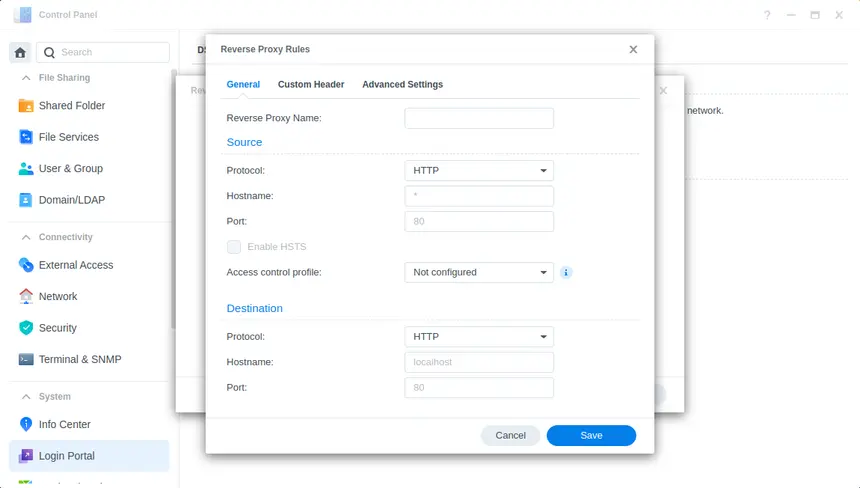
- Open it. Control Panel → Login Portal → Advanced → Reverse Proxy → Create.
- Name the rule something you'll recognise in a year (
jellyfin, nottest2). - Source — what the browser asks for: Protocol HTTPS, Hostname
media.example.com, Port443. Tick Enable HSTS once you're sure HTTPS works. - Destination — where the app really lives: Protocol HTTP (most containers), Hostname
localhostfor apps on the NAS or a LAN IP for another box, Port8096. - Custom Header tab → arrow next to Create → WebSocket. Just do it for every modern app; it costs nothing and fixes half of all “it loads then hangs” reports.
- Save. Then assign a certificate (next section) and test from a phone on mobile data, not from your sofa.
The four settings every tutorial skips
1. A certificate that actually covers the hostname
Creating the rule doesn't give it a certificate. Go to Control Panel → Security → Certificate, add a Let's Encrypt certificate for the hostname (or a wildcard for your domain via DNS validation), then Settings and assign it to the new reverse-proxy entry in the list. Skip this and the browser will cheerfully warn every visitor that you might be a criminal. Let's Encrypt's HTTP validation also needs port 80 reachable during issuance and renewal.
2. WebSocket headers
Jellyfin, Home Assistant, Vaultwarden, Portainer, code-server — anything with live updates uses WebSockets. Without the Upgrade/Connection headers the page loads and then sulks. The WebSocket preset in Custom Header adds both.
3. Timeouts
The Advanced Settings tab has the proxy's connection, send and read timeouts. If big uploads or long-running requests die at the same point every time, this is why. Raise them for upload-heavy apps rather than globally.
4. An Access Control Profile for anything admin-shaped
Under Login Portal → Advanced → Access Control Profile, create a profile that allows your LAN range (and denies everything else), then pick it in the rule's Source section. Your media server can face the world; your Portainer really shouldn't.
Synology reverse proxy not working? Symptom → fix
Most breakage falls into a handful of patterns. Find your symptom:
| Symptom | Usually means | Fix |
|---|---|---|
| Page loads, then spins or “disconnected” | WebSocket headers missing | Rule → Custom Header → Create ▾ → WebSocket |
| 400 Bad Request (Home Assistant & co.) | App doesn't trust the proxy | Add the NAS IP to the app's trusted proxies; send X-Forwarded-For |
| 502 Bad Gateway | Destination wrong or app down | Check host/port from the NAS itself; is the container running? HTTP vs HTTPS? |
| 504 / big uploads die at one minute | Proxy timeouts | Rule → Advanced Settings → raise the timeouts |
| Certificate warning in the browser | Hostname not on the certificate | Security → Certificate → Settings: assign a cert covering that name |
| Works at home, not from outside | Router, firewall, or CGNAT | Forward 443 to the NAS, allow it in DSM's firewall, check your WAN IP |
| Lands on DSM's login page instead of the app | Hostname typo / no matching rule | Source hostname must match exactly what you type in the browser |
Two habits save the most time. First, test the destination from the NAS itself (SSH in and curl -I http://localhost:8096) — if that fails, the proxy was never the problem. Second, test from outside: plenty of routers can't loop back to their own public IP, so “broken at home” often means “working fine everywhere else”.
“Domain name already used”? DSM already claims that hostname somewhere — often in Login Portal's DSM or Applications tab, where built-in apps can have their own custom domains. Remove it there, or pick a different name.
Is it safe? The honest version
The proxy is fine. What it does is publish things, and every published login page is a new door the internet will politely try every key on. So: HTTPS with a real certificate, HSTS on, auto-block enabled (Control Panel → Security → Protection), 2FA on DSM, apps updated, and Access Control Profiles on anything you'd be embarrassed to see in a breach report. Publish only what other people actually need to reach. And never, ever forward SMB (445) “while you're in there”. Synology NAS boxes on old DSM builds are an active ransomware target right now — see C3RB3R ransomware on Synology.
The one thing a reverse proxy can't do: get traffic in
Here's the bit people only discover after a fully configured, beautifully named, HTTPS-perfect setup that nobody can reach: a reverse proxy only routes traffic that already arrived. Forwarding 443 on your router only helps if your router has a public IP. Many ISPs, especially on fibre, 4G/5G and fixed wireless, put customers behind CGNAT: one public address shared by many homes. Your router's WAN IP then sits in 100.64.0.0/10 or another private range, and inbound connections stop at the ISP. How to check, and every way around it: CGNAT port forwarding: why it fails.
The fixes all flip the direction, so the NAS dials out:
- Cloudflare Tunnel — a hosted reverse proxy at Cloudflare's edge, with free plans; excellent for publishing web apps on your own domain. (Our honest comparison.)
- Tailscale — a private WireGuard network; reach every app on its LAN port, no public exposure at all. (Compared here.)
- QuickConnect — Synology's own, covers DSM and Synology's apps, not your containers.
And if what you really wanted was your files
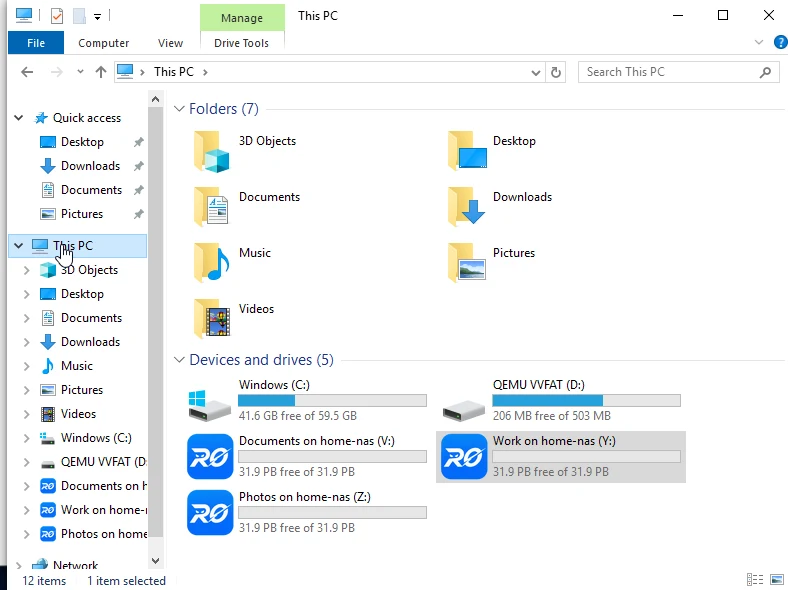
A lot of reverse-proxy evenings start with “I just want to get at my NAS from work”. If that means files, a reverse proxy is the wrong-shaped tool: it carries HTTP, and file sharing is SMB. RocketZero is built for exactly that job. The NAS-side package connects outward, so there's no port forwarding, no DDNS, and it works behind CGNAT; the desktop app for Windows or macOS signs in with your existing DSM username and password (no separate account) and mounts your shares as real drives — Z: in Explorer, or in Finder.
The drive mount runs over WireGuard: direct peer-to-peer when the network allows, an encrypted relay only when hole-punching fails, and end-to-end encrypted either way. You also get an <id>.roze.to address with HTTPS already set up that opens DSM and its web apps (Photos, File Station…) in a browser. Honest footnote, since this whole article is about them: that browser address is a hosted reverse proxy, with TLS terminated at our relay, so it isn't end-to-end encrypted. The drive is.
RocketZero ships today for Synology DSM 7, OpenMediaVault 7 and TrueNAS SCALE, with desktop apps for Windows and macOS (on first launch on macOS you'll need to allow it in System Settings → Privacy & Security). It doesn't carry Synology Drive Client (port 6690), and the drive mount uses your DSM password. DSM's 2FA protects the web UI, not SMB, so a dedicated remote-access account is a good idea. Full walkthrough: the RocketZero setup guide.
Reverse proxy, or something else?
Use the Synology reverse proxy if…
- you have a real public IP and can forward 443;
- you're publishing web apps (Jellyfin, Home Assistant, a website) for people without a VPN;
- you'll keep certificates, DSM and apps up to date.
Use something that dials out if…
- you're behind CGNAT, or can't touch the router;
- you'd rather not have login pages on the internet;
- you want your NAS as a drive, not a web page: download RocketZero.
The Synology reverse proxy is one of DSM's best-kept secrets: free, built in, and genuinely good at what it does. Just remember it organises your front door. It doesn't install one.
FAQ
Where is the reverse proxy in Synology DSM 7?
Control Panel → Login Portal → Advanced tab → Reverse Proxy. (In DSM 6 it lived under Control Panel → Application Portal.) It's built into DSM — you don't need to install a package or run a container.
Is the Synology reverse proxy safe?
The proxy itself is DSM's own nginx and is as safe as the apps behind it. The risk is what it exposes: every rule puts an app's login page on the internet. Use HTTPS with a valid certificate, enable HSTS, restrict admin-type apps with an Access Control Profile, keep DSM and the apps patched, and only publish what genuinely needs to be public.
Does a Synology reverse proxy work without port forwarding?
No. A reverse proxy routes traffic that has already reached your NAS; something still has to let it in. You need port 443 (and usually 80 for certificate renewal) forwarded to the NAS and a real public IP. Behind CGNAT it can't receive anything. For no-port-forwarding access, use something the NAS dials out from: QuickConnect, Cloudflare Tunnel, Tailscale or RocketZero.
Why do I get 400 Bad Request with Home Assistant behind the Synology reverse proxy?
Home Assistant rejects proxied requests unless the proxy is trusted. In configuration.yaml, under http:, set use_x_forwarded_for: true and add your NAS's LAN IP to trusted_proxies, then restart Home Assistant. Also add the WebSocket headers to the rule, or the UI will load and then hang.
How do I enable WebSocket in the Synology reverse proxy?
Edit the rule → Custom Header tab → click the arrow next to Create → WebSocket. DSM adds the Upgrade and Connection headers for you. Jellyfin, Home Assistant, Vaultwarden, Portainer and most modern dashboards need this.
Can I map my Synology as a network drive through the reverse proxy?
No. A reverse proxy carries HTTP(S), and file sharing uses SMB, which it can't proxy (and which should never be exposed to the internet anyway). For a drive from outside, use a VPN, Tailscale, or RocketZero, which mounts the NAS as a real drive over an encrypted WireGuard connection.
Skip the port forwarding entirely
RocketZero mounts your NAS as a drive from anywhere: no port forwarding, no DDNS, works behind CGNAT, no extra account. Free to get started.
Download RocketZero Read the setup guide