Blog · Networking
Synology DDNS: how to set it up, fix it, and know when it can't help (2026)
Your home IP address changes whenever your ISP feels like it, which is a bit like a friend who moves house every few weeks and never tells anyone. Synology DDNS is the forwarding address: a free name like yourname.synology.me that always points at wherever your NAS lives today. Here's how to set it up in DSM 7, how to fix it when it says “Normal” and still doesn't work, and the one situation where no amount of DDNS will save you.
TL;DR
- DDNS = a name for your IP. DSM updates
yourname.synology.mewhenever your public IP changes. That's all it does. - Setup: Control Panel → External Access → DDNS → Add → provider Synology → pick a hostname → sign in with your Synology Account → OK.
- DDNS doesn't open anything. You still need port forwarding, a firewall rule, and a real public IP. Behind CGNAT, DDNS updates happily and nothing connects.
- Want your NAS as a drive from anywhere, with no ports open? That's a different tool — QuickConnect, Tailscale or RocketZero (see the comparison below).
What Synology DDNS actually is
Most home internet connections get a dynamic public IP: it changes after a router reboot, an ISP maintenance window, or seemingly a change in the weather. Dynamic DNS (DDNS) fixes the naming half of that. Your NAS checks its public IP periodically and, when it changes, tells a DNS provider to update the record. You type a hostname; DNS hands back today's address.
DSM has a DDNS client built in. It works with Synology's own free service — hostnames under synology.me and a handful of sibling domains, tied to your Synology Account — and with a list of third-party providers (No-IP and friends), plus a Customize Provider button for anything that accepts a simple update URL.
How to set up Synology DDNS in DSM 7 (5 minutes)
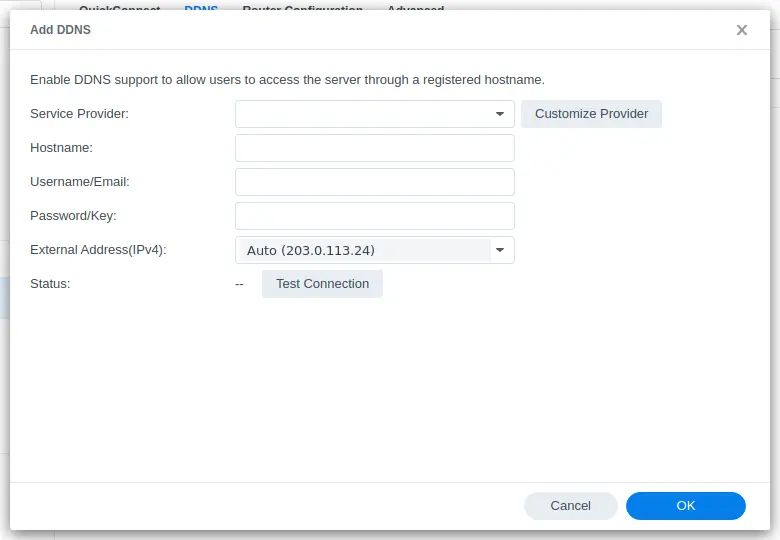
- Open the DDNS tab. Control Panel → External Access → DDNS → Add.
- Service Provider: choose Synology for the free
synology.me-style name (or your own provider if you already have one). - Hostname: pick a name and a domain. Make it memorable but not guessable —
smith-family-nasinvites more curiosity than you'd like. - Sign in with your Synology Account when prompted (third-party providers ask for their username and password/key instead).
- External Address: leave it on Auto. DSM shows the public IP it detected — note it, it's useful later.
- Certificate: with the Synology provider, DSM offers to get a Let's Encrypt certificate for the hostname. Say yes; HTTPS with a browser warning is not HTTPS anyone will use.
- Test Connection, then OK. The status should read Normal.
Congratulations: your NAS now has a name. Here's the part most setup guides mumble through — so far nothing can actually reach it. For that you still need to:
- forward a port on your router to the NAS (DSM defaults:
5000HTTP,5001HTTPS) — DSM's Router Configuration tab can try this via UPnP, or do it on the router; - allow that port in DSM's firewall, if you've enabled it;
- have a real public IPv4 address (more on that in a second).
Security, briefly and without drama: this setup puts your DSM login page on the public internet. If you go this way, turn on 2-factor authentication, keep auto-block enabled (Control Panel → Security → Protection), disable the default admin account, and keep DSM updated. Forward only HTTPS — and never forward SMB (445).
Synology DDNS not working? Work through it in this order
“DDNS not working” is usually “DDNS working fine, something else not working.” Check from the hostname outward:
- Status isn't Normal. Re-enter the provider credentials, hit Update Now, and check the NAS has working DNS and the correct time (Control Panel → Regional Options). A NAS that can't reach the internet can't update anything.
- Normal, but the IP is wrong. Compare the IP in the DDNS list with “what is my IP” from a device at home. If DSM's detected address is different, set External Address manually or fix whatever (a VPN on the NAS, usually) is skewing detection.
- Right IP, but it doesn't work from home. Your router may not support NAT loopback (hairpinning) — connecting to your own public IP from inside. Test from a phone on mobile data instead. If that works, nothing is broken.
- Doesn't work from outside either. Check the port-forwarding rule points at the NAS's current LAN IP (give the NAS a DHCP reservation), that DSM's firewall allows the port, and that your ISP doesn't block it.
- Everything looks right and still nothing. Log in to your router and look at its WAN IP. If it's different from your public IP — especially anything in
100.64.0.0–100.127.255.255— you're behind CGNAT.
The one thing DDNS can't fix: CGNAT
With carrier-grade NAT, your ISP shares one public IPv4 address among many customers. DDNS will dutifully publish that shared address, the name will resolve, the status will say Normal — and every incoming connection stops at the ISP's NAT, which has no idea which of its customers you are. Your port-forwarding rule is fine; it's just on a router nobody can reach. It's like printing beautiful business cards with the address of a building whose front desk won't let anyone up.
Your options at that point: ask your ISP for a public IP (sometimes free, sometimes paid, sometimes impossible), try IPv6, or switch to something where the NAS connects outward. We go through all six in CGNAT port forwarding: why it fails, and how to reach your NAS anyway.
Synology DDNS vs QuickConnect (and the drive-shaped gap)
They live on neighbouring tabs in DSM and get confused constantly. DDNS is a phone-book entry: it tells the world your address and leaves the door to you. QuickConnect is a switchboard: the NAS keeps a line open to Synology, so you can reach DSM and Synology's apps without port forwarding — but when a direct path isn't possible you're relayed through Synology's servers, which is where “QuickConnect is slow” comes from. Neither one gives you a mapped network drive from outside; for that you need something that carries SMB safely.
| Approach | No port forwarding? | Behind CGNAT? | NAS as a mapped drive? | The catch |
|---|---|---|---|---|
| DDNS + port forwarding | ✗Yes — that's the deal | ✗No | ~Only by exposing SMB — don't | Your DSM login is on the open internet |
| QuickConnect | ✓No | ✓Yes | ✗No — no SMB | Often relayed, so often slow |
| DDNS + Synology VPN Server | ✗Yes (one VPN port) | ✗No | ✓Yes, over the VPN | VPN client on every device |
| Tailscale | ✓No | ✓Yes | ✓Yes, via the tailnet IP | You get a whole network to manage |
| RocketZero | ✓No | ✓Yes | ✓Yes — a real drive letter / Finder | DSM, OMV and TrueNAS SCALE only |
DDNS + Synology's VPN Server is the classic sound setup: one VPN port open, everything else (including SMB) inside the tunnel. It works well if you're happy to run a VPN client on every laptop and phone. Tailscale does the same job without the open port — and hands you a whole private network to look after. We compared both honestly in Synology QuickConnect alternatives.
If what you actually wanted was the NAS as a drive
A lot of people set up DDNS because they want to open their files from work like they do at home. That's the job RocketZero is built for. The NAS-side package connects outward, so there's no port forwarding, no DDNS, and it works behind CGNAT. Install the desktop app on Windows or a Mac (Apple Silicon or Intel), sign in with your existing DSM username and password — there's no separate RocketZero account — and your shares mount as real drives: Z: in Explorer, or in Finder.
Under the hood it's WireGuard: direct peer-to-peer when the networks allow it, an encrypted relay only when hole-punching fails, so on a direct path your files never touch our servers and on relay the relay only sees ciphertext. You also get a <id>.roze.to address with HTTPS already set up that opens DSM and its web apps in a browser — honest footnote: that browser path is a hosted reverse proxy (like Cloudflare Tunnel), so it isn't end-to-end encrypted; the drive mount is.
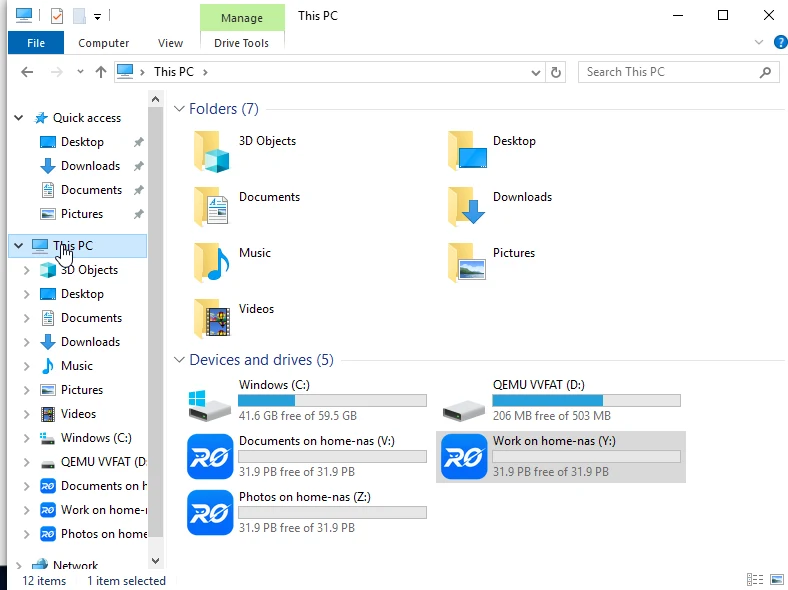
RocketZero ships today for Synology DSM 7, OpenMediaVault 7 and TrueNAS SCALE, with desktop apps for Windows and macOS. On first launch on macOS you'll need to allow it in System Settings → Privacy & Security. Two honest limits: it doesn't carry Synology Drive Client (that needs port 6690), and the drive mount uses your DSM username and password — DSM's 2FA protects the web UI, not SMB — so a dedicated remote-access account is a good idea. Step by step: Synology setup or the RocketZero setup guide.
So: DDNS or not?
DDNS is the right tool if…
- you have a real public IP and you're comfortable forwarding a port;
- you're hosting something public (a website, Plex-style sharing) or a VPN server;
- you'll keep DSM patched and 2FA on.
Skip DDNS if…
- you're behind CGNAT — it can't help;
- you don't want your login page on the internet;
- you want a drive letter or Finder, not a browser tab — download RocketZero.
DDNS is a good, free, decades-old tool that does exactly one thing well. Just don't ask it to do the other three.
FAQ
Is Synology DDNS free?
Yes. Synology's own DDNS service (hostnames like yourname.synology.me) is free with a Synology Account and is set up from Control Panel → External Access → DDNS. Third-party providers such as No-IP have free tiers too, usually with conditions like periodic confirmation.
What's the difference between Synology DDNS and QuickConnect?
DDNS only gives your changing home IP a stable name — you still need port forwarding and a public IP for anyone to connect. QuickConnect has the NAS connect out to Synology's servers, so it works without port forwarding (and behind CGNAT), but it often runs through Synology's relay, which can be slow. DDNS is a phone-book entry; QuickConnect is a switchboard.
Why does my Synology DDNS say Normal but I still can't connect?
Because “Normal” only means the name points at your public IP. Reaching the NAS also needs a port-forwarding rule on your router, a DSM firewall that allows the port, an ISP that doesn't block it, and a real public IP — not CGNAT. Test from outside your network (e.g. a phone on mobile data), not from home, where NAT loopback can fail even when everything works.
Does Synology DDNS work behind CGNAT?
The hostname will update, but it will point at your ISP's shared public address, and nothing arriving there is forwarded to your NAS. DDNS can't fix CGNAT. Ask your ISP for a public IP, or use something that connects outward from the NAS (QuickConnect, a tunnel, Tailscale, RocketZero).
Can I use Synology DDNS to map the NAS as a network drive from outside?
Technically, by forwarding SMB (port 445) — and you shouldn't: SMB on the open internet is a favourite target, and many ISPs block 445 anyway. For a drive from outside, use a VPN, Tailscale, or RocketZero, which mounts the NAS as a real drive over an encrypted WireGuard connection without opening ports.
Tired of babysitting ports?
RocketZero mounts your NAS as a drive from anywhere — no port forwarding, no DDNS, works behind CGNAT, no extra account. Free to get started.
Download RocketZero Read the setup guide