Blog · Guide
How to access your Synology NAS remotely (2026)
You bought a NAS so your files would live in one safe place. Then you left the house, and that safe place became a locked box on the other side of the internet. Here are the five real ways to reach a Synology from anywhere — what each one actually does, where it hurts, and how to pick.
TL;DR
- Just want DSM in a browser, zero effort? Synology QuickConnect is the one-toggle answer — right up until the afternoon it quietly decides you're a stranger.
- Want the "proper" self-hosted route? A VPN (Tailscale / WireGuard) or Cloudflare Tunnel — powerful, secure, and a weekend of your life to wire up.
- Please, never port-forward DSM's login page to the open internet. That's leaving your front door open with a "valuables inside" sign.
- Want your NAS to just show up as a drive (V:, Z:, or in Finder) from anywhere, no networking degree required? That's the gap step-by-step setup below fills.
The five ways to reach your Synology from afar
Every remote-access method is really answering one question: how does a request from the coffee shop find your NAS sitting behind a home router that trusts no one? There are exactly two families of answers. Either you open a door inward (port forwarding — the router lets outsiders in) or the NAS reaches outward to a helper in the middle (everything else). The outward approaches win almost every time, because they work behind CGNAT and don't leave a login page facing the entire internet.
Let's walk the five, cheapest-effort last.
Method 1 — QuickConnect (the built-in one)
QuickConnect is Synology's own answer, and it's genuinely good: flip one switch in DSM, pick an ID, and yourid.quickconnect.to opens DSM and its apps in a browser from anywhere. No router config, works behind CGNAT, free with your NAS. For "let me check a file from my phone," it's hard to beat.
The catch is that it's a relay you don't control. When peer-to-peer fails, your traffic rides Synology's servers, which is where the classic complaints come from — it can get slow, and every so often it just... stops connecting for a while. It also gets you a browser, not a drive: great for grabbing one photo, less great for working off a folder all day. Fed up already? Here are the Synology QuickConnect alternatives, compared.
Method 2 — Port forwarding + DDNS (the rite of passage)
The old-school route: log into your router, forward ports 5000/5001 to the NAS, set up a DDNS hostname so your ever-changing home IP has a name, then wrestle a Let's Encrypt certificate so it's HTTPS. When it works, you own the whole path end to end, no middleman.
It's also the option we'd gently steer you away from. Port forwarding is a rite of passage roughly as fun as assembling flat-pack furniture in the dark — and worse, it publishes your DSM login page to every bot on the internet. It flatly doesn't work behind CGNAT (no public IP to forward to). If you go this way, treat security as mandatory: HTTPS, 2-factor auth, auto-block, the DSM firewall, and never, ever forward the admin port. For most people in 2026, there's a better door.
Method 3 — A VPN (Tailscale, WireGuard, OpenVPN)
A VPN flips the model: instead of exposing the NAS, you join a private network that the NAS is also on, and reach it as if you were home. Tailscale (built on WireGuard) is the modern favourite because it needs no port forwarding and punches through most NATs automatically; DSM even has packages for it. It's fast, encrypted end-to-end, and it's the right answer if you want to reach everything at home, not just the NAS.
The trade is scope and setup. Tailscale hands you an entire private network — wonderful, if you wanted a network. You wanted your files. You install it on the NAS and every device, sign in to a tailnet, enable DSM's outbound connections, and then you still map the network drive to the NAS's 100.x address yourself. All doable; none of it automatic. We wrote a whole RocketZero vs Tailscale comparison if you're weighing exactly this.
Method 4 — Cloudflare Tunnel (publish it to the web)
Cloudflare Tunnel runs a small connector on your NAS that dials out to Cloudflare's edge, so you can reach DSM at your own domain with no open ports and no CGNAT problems. It's robust, it's free for personal use, and Cloudflare's network is enormous. For publishing a web app, it's excellent.
Two honest caveats. First, it publishes a web endpoint — TLS is terminated at Cloudflare's edge to route it, so that path isn't end-to-end encrypted (the same trust model as any hosted tunnel; fine for many people, worth knowing). Second, like QuickConnect, it gives you a browser tab, not a mounted drive. There's a fuller RocketZero vs Cloudflare Tunnel breakdown if that's your shortlist.
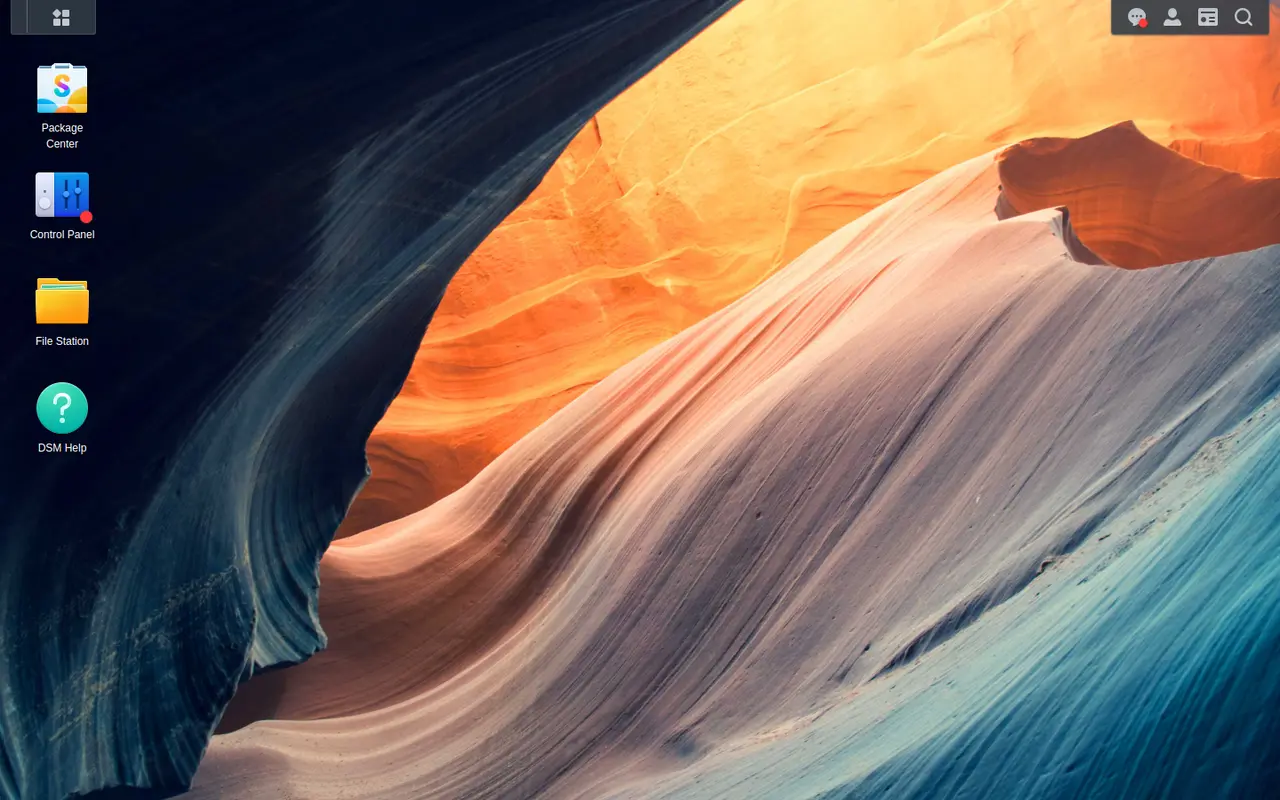
home-nas.roze.to — lands you here: DSM in a tab, from anywhere. Handy for a quick check; not the same as having the files on your computer.Method 5 — RocketZero (mount it as a drive)
Here's the thing all four methods above quietly assume: that a browser tab is what you wanted. Often it isn't. You shouldn't need a networking certification to open a spreadsheet from the couch — you just want the folder to be there, in Finder or File Explorer, like it is at home.
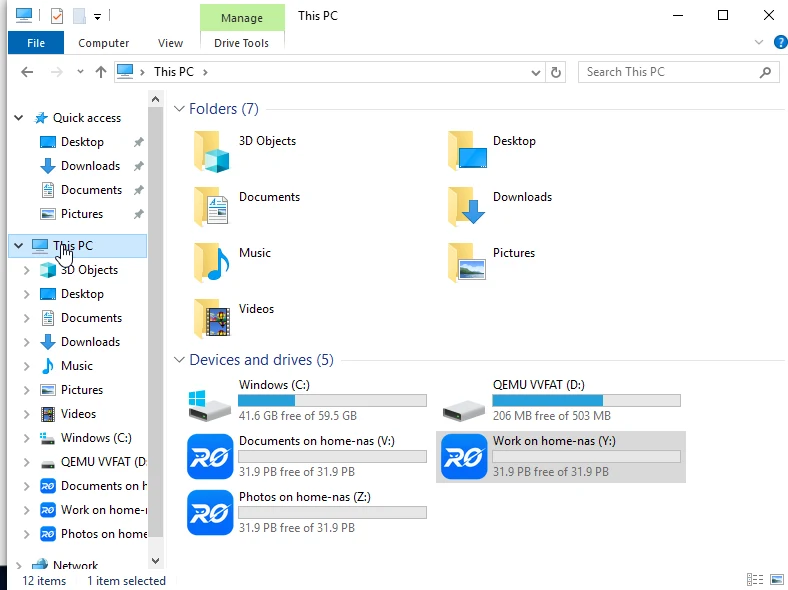
That's the one job RocketZero does. Install a package on the Synology, install the app on your Mac or PC, and your shared folders appear as a real network drive (V:, Z:, or in Finder) — open, edit, and save like a local disk, from anywhere. It's built on the same WireGuard mesh as Tailscale, with a self-hosted control plane, so it goes direct peer-to-peer when the network allows and falls back to an encrypted relay when it doesn't. The drive mount is end-to-end encrypted; on a direct path your files never touch our servers.
You sign in with your existing NAS username and password — there's no separate RocketZero account — and credentials live in the OS keychain, never in plaintext. You also get a friendly home-nas.roze.to address that opens DSM and its web apps in a browser with HTTPS already set up (that browser path is a hosted reverse proxy, not end-to-end — the drive mount is the encrypted one). It's free to get started, and it's a Synology DSM package.
Set up RocketZero on your Synology, step by step
75-second walkthrough: Synology → your address → a drive on your PC.
What you'll need
- A Synology NAS running DSM 7 with internet access
- Your DSM admin login (and one DSM user for file access)
- A Windows or macOS computer for the app
- About 5 minutes
Download the RocketZero package
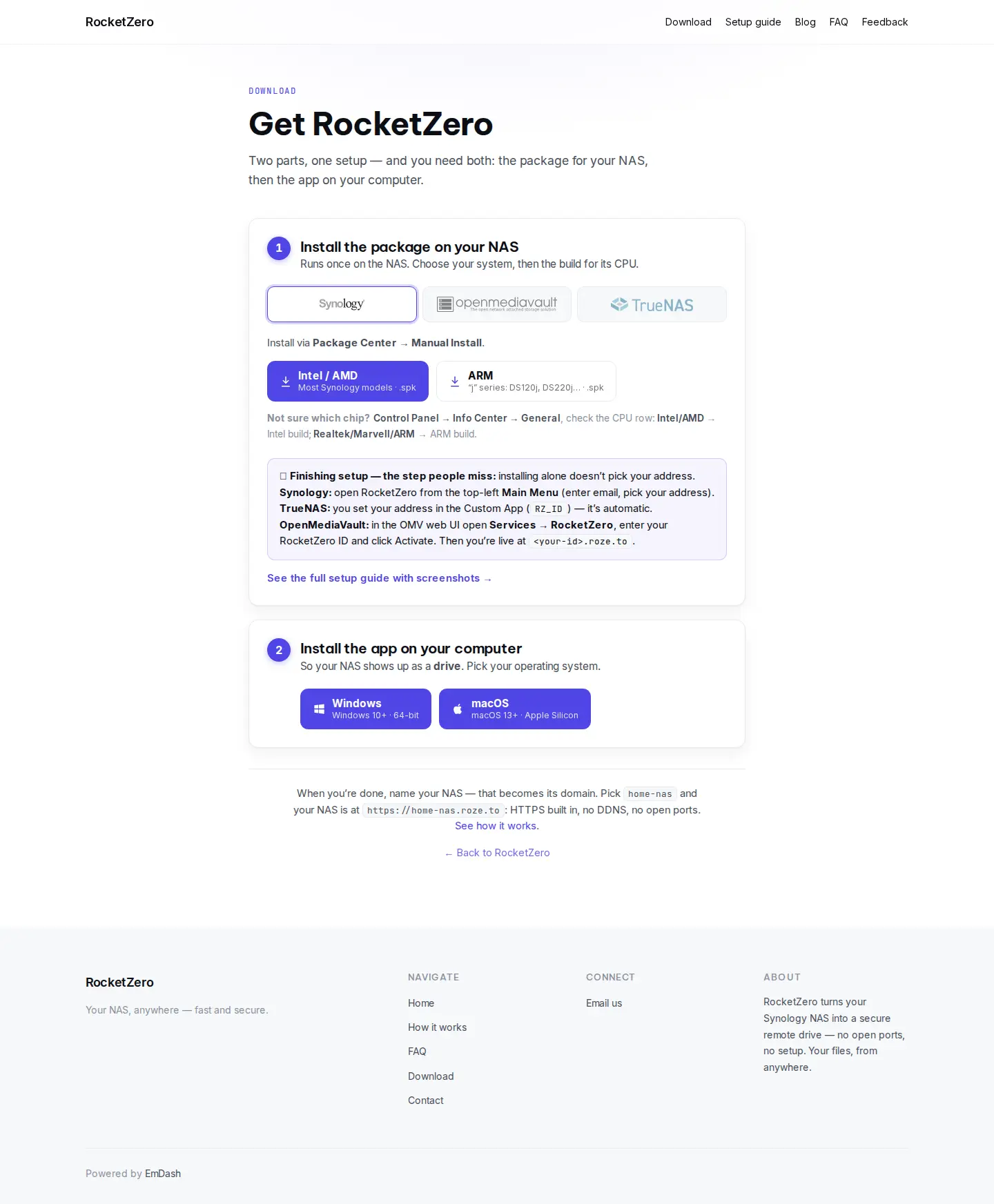
Head to roze.to/download and, under Synology, download the package (.spk) for your NAS's CPU. Not sure which? In DSM open Control Panel → Info Center — an Intel/AMD model takes the x86_64 build; Realtek/Marvell/ARM models take the ARM build.
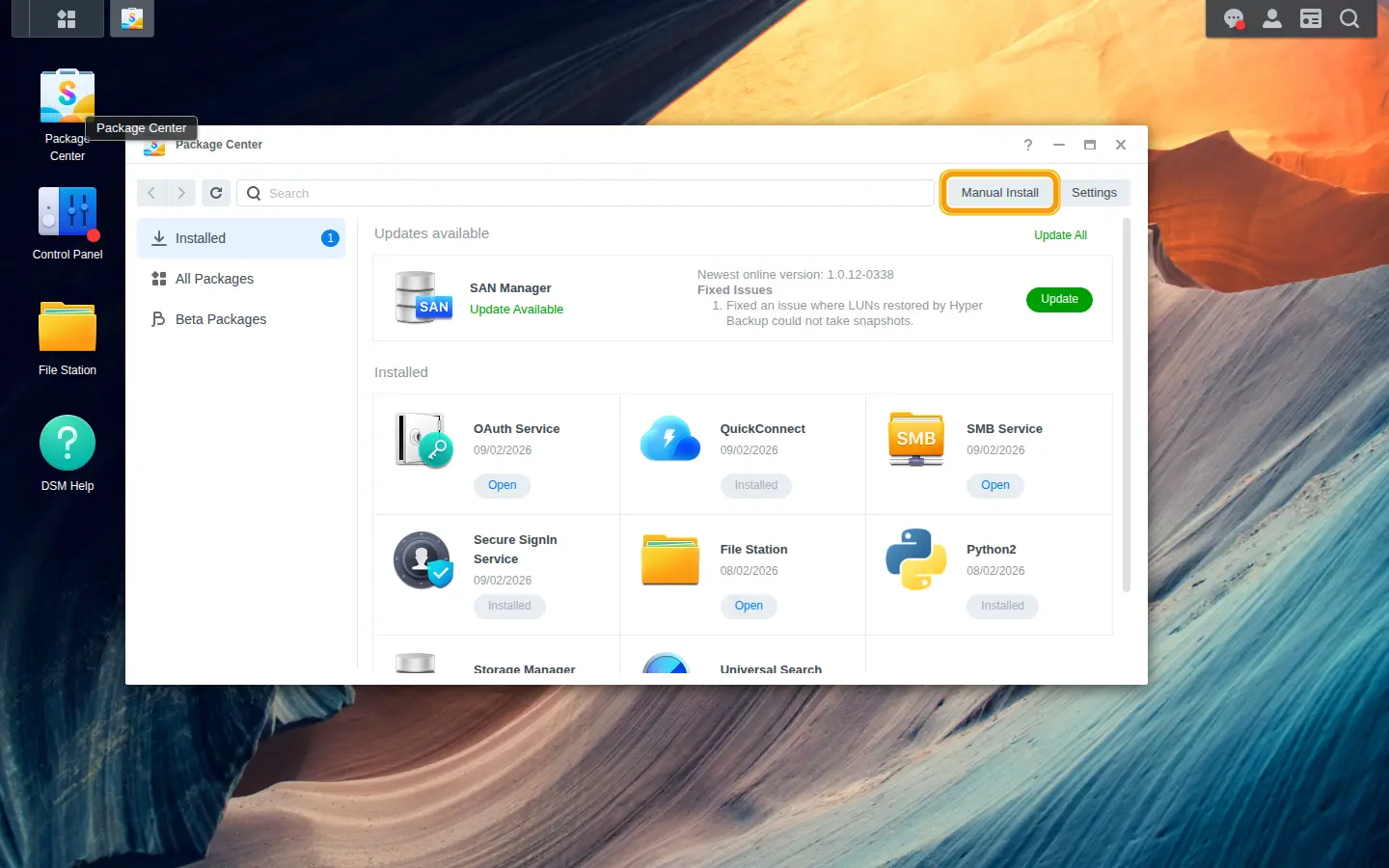
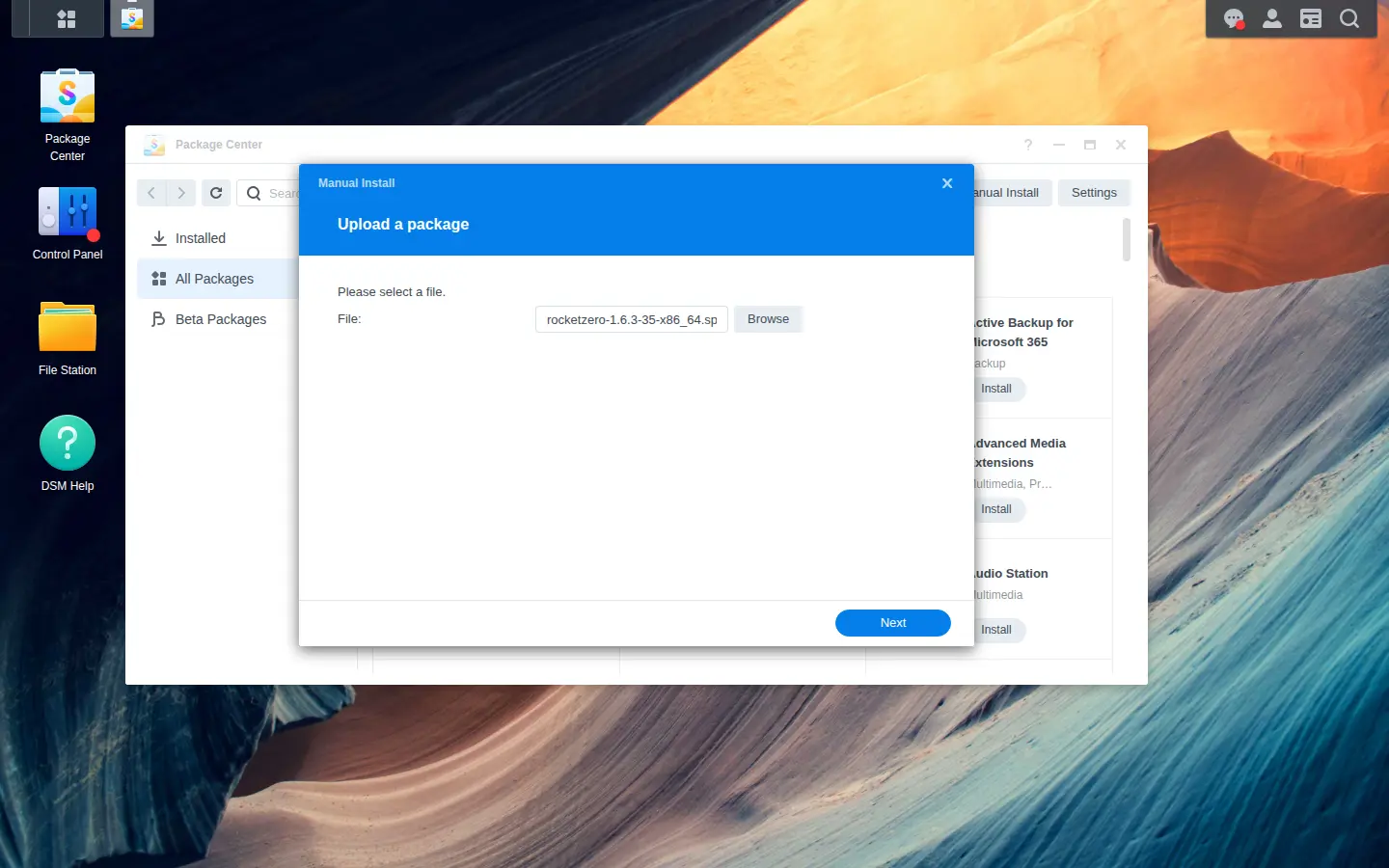
Open Package Center → Manual Install
Open Package Center from your DSM desktop. In the top-right corner, click Manual Install (highlighted above) — that's how you install a package from a file instead of Synology's store.
Upload the package
Click Browse, choose the .spk you just downloaded, and click Next. DSM notes that it's a third-party package. Click Agree.
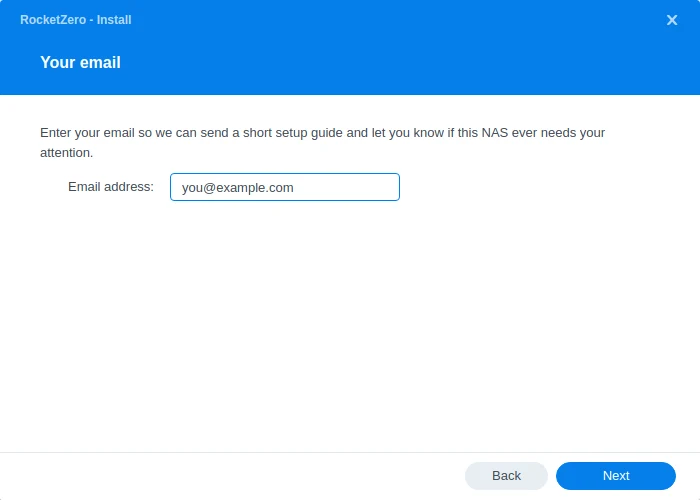
Enter your email
The installer asks for an email so we can send a short setup guide and let you know if this NAS ever needs attention. Type it and click Next.
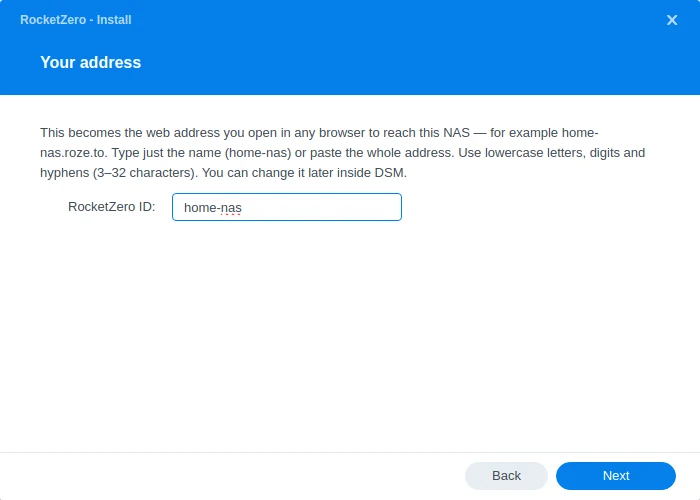
Pick your address and install
Choose a short RocketZero ID: lowercase letters, digits and hyphens. It becomes your NAS's address, https://<your-id>.roze.to, with HTTPS built in. You can type just the name or paste the whole address. Click Next, then Done. It installs and connects in a few seconds.
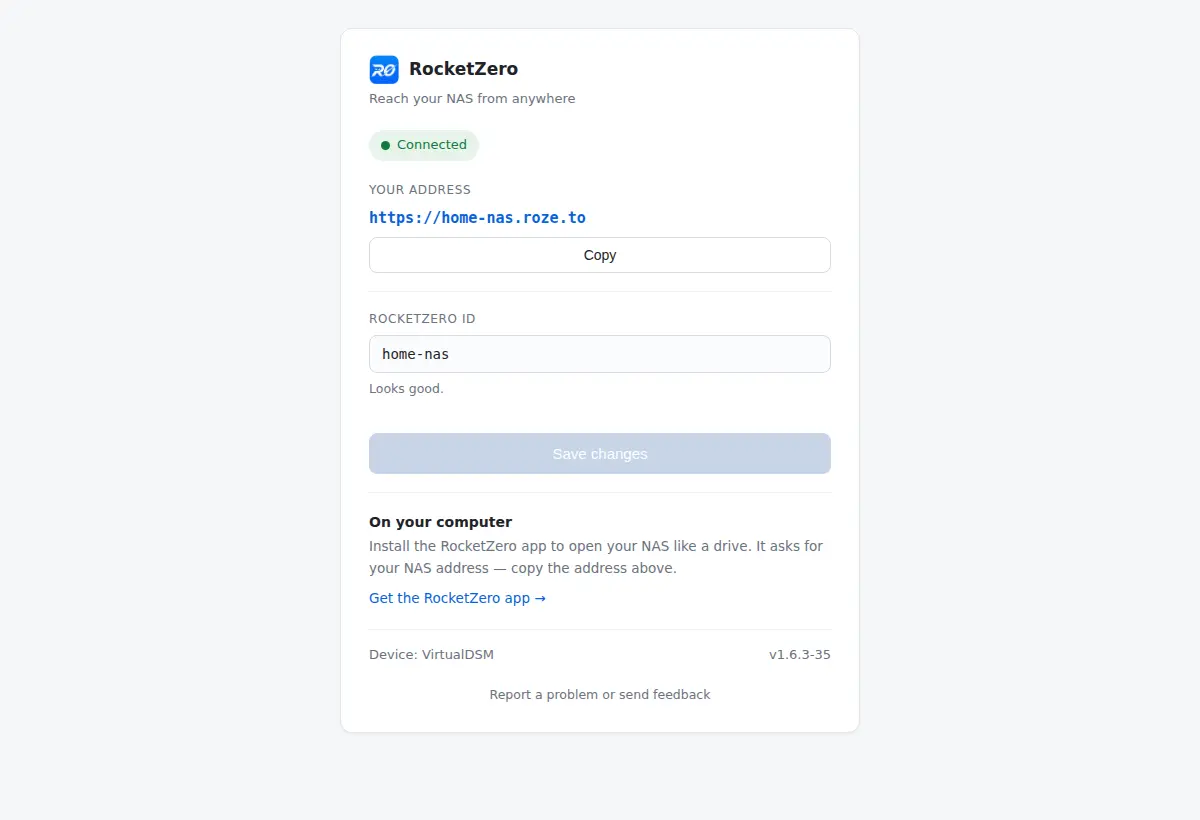
You're connected
Open RocketZero from the DSM Main Menu to check: it shows ● Connected and your address. Your DSM is now reachable from anywhere over an encrypted tunnel. Nothing is exposed to the internet and you never touched your router.
Open your NAS from a browser — anywhere
From any computer or phone in the world, open https://<your-id>.roze.to and you land on your Synology's own DSM login — the real one, served straight from your NAS over the tunnel. Sign in with your DSM account as usual.
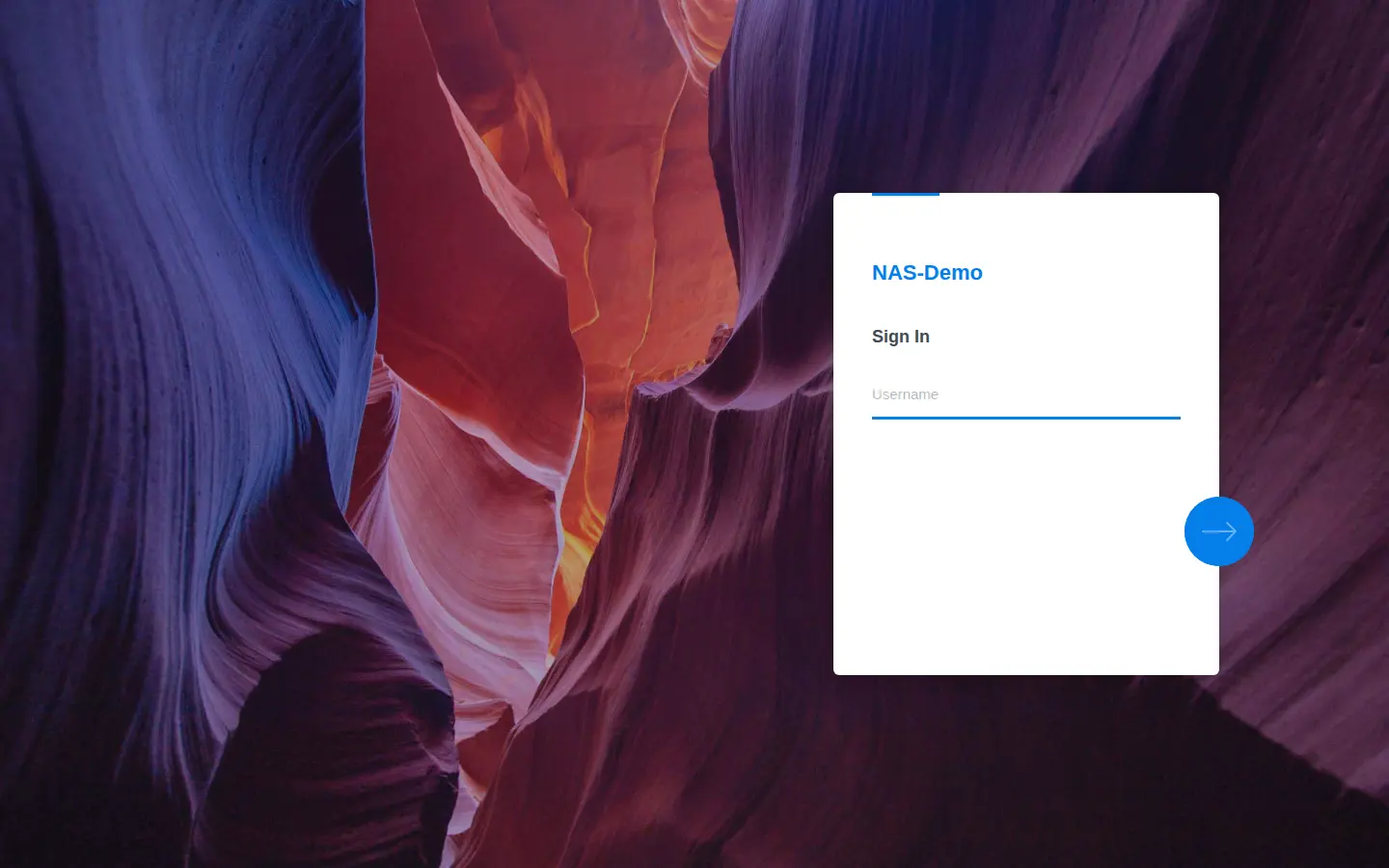
Get the app and connect to your Synology
The real magic is opening your NAS as a drive. Grab the Windows or macOS app from roze.to/download, install it, then enter your RocketZero ID. It finds your Synology and shows it Online. Sign in with a DSM account that can reach your shared folders, and tick Stay signed in.
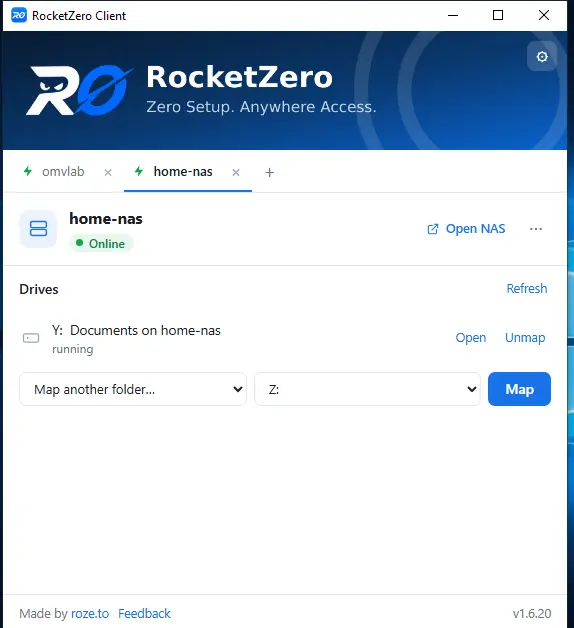
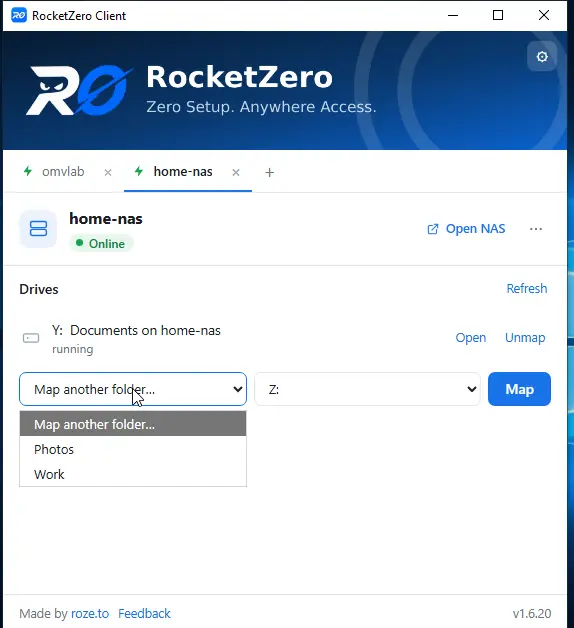
Map a shared folder
The app lists your Synology shared folders. Pick one, choose a drive letter, and click Map.
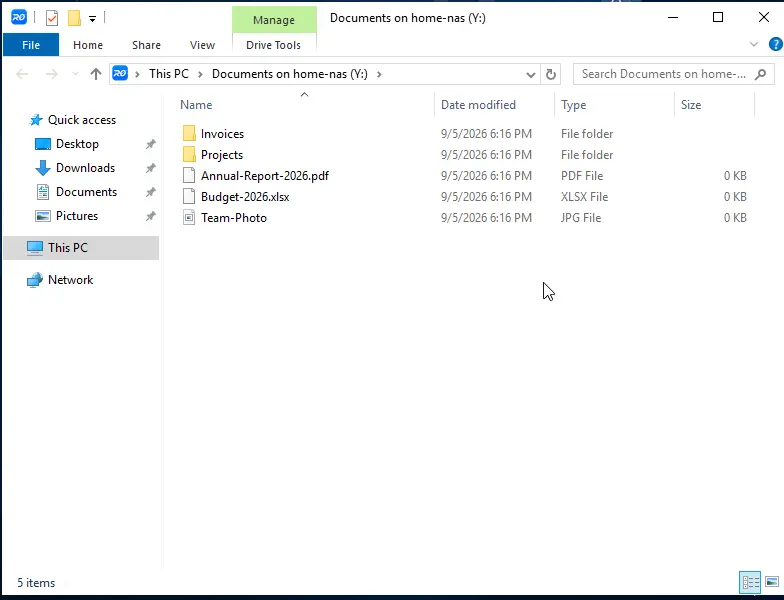
Open your files like a local disk
File Explorer opens straight to your new drive. Documents, photos, projects — everything on your Synology, open, edit and save exactly like a local disk, from wherever you are. It's a real SMB connection over an encrypted, direct peer-to-peer link (falling back to an encrypted relay only when the network blocks it).
Every method, side by side
| Method | Setup | No port fwd | Behind CGNAT | Mounts as drive | Encrypted path |
|---|---|---|---|---|---|
| QuickConnect | One toggle in DSM | ✓ | ✓ | ✕ | Synology relay (TLS terminated) |
| Port forwarding + DDNS | Router + DDNS + certs | ✕ | ✕ | ✕ | Your HTTPS, if you set it up |
| VPN (Tailscale / WireGuard) | Install everywhere, sign in | ✓ | ✓ | ~ Manual | End-to-end (WireGuard) |
| Cloudflare Tunnel | Tunnel + DNS + config | ✓ | ✓ | ✕ | TLS terminated at Cloudflare |
| RocketZero | Two installs, no config | ✓ | ✓ | ✓ | Drive mount is end-to-end |
"Manual" for the VPN drive-mount means it's possible and works well — you just map it yourself. Nothing here is bad; they're built for different jobs. Port forwarding is the only one we'd actively talk you out of.
Which one should you actually pick?
Pick a VPN / Cloudflare if…
- You want to reach your whole home network, not just the NAS.
- You enjoy the control — ACLs, exit nodes, your own domain — and don't mind the setup.
- You're publishing a web app to specific people and a browser tab is the goal.
Pick RocketZero if…
- You want the NAS as a drive — open, edit, save files like a local disk.
- You want zero networking setup: no ports, no ACLs, no IPs to map.
- You're setting it up for someone non-technical (or a customer) and it must just work.
And if you just need to peek at one file from your phone once a month, QuickConnect is already on your NAS — turn it on and get on with your day. Matching the method to the job beats chasing the "best" one.
The safe way, in one line
However you get in, keep two rules: don't put your DSM login page on the open internet, and turn on 2-factor auth. Methods that connect outbound (a VPN, an encrypted mesh, a tunnel) keep the NAS unlisted, so there's simply no public login page for bots to hammer. That's the whole security argument for skipping port forwarding — it's not just easier, it's safer.
FAQ
What is the easiest way to access a Synology NAS remotely?
The lowest-effort options are the ones that need no router changes: Synology's own QuickConnect, or a hosted tunnel/relay like RocketZero. QuickConnect gets you into DSM in a browser with one toggle. RocketZero goes one step further and mounts the NAS as a drive on your computer, so files open in Finder or Explorer like a local disk. Both skip port forwarding entirely.
How do I access my Synology NAS remotely without port forwarding?
Use a method that makes an outbound connection instead of opening an inbound port: QuickConnect, a WireGuard/Tailscale VPN, Cloudflare Tunnel, or RocketZero. Each of these dials out from the NAS to a coordination server, so your router's firewall stays shut. That also means they keep working behind CGNAT, where port forwarding is impossible anyway.
Can I access my Synology NAS remotely if I have no public IP (CGNAT)?
Yes. CGNAT (common on fibre, 5G and Starlink) hides you behind your ISP's address, so port forwarding and DDNS simply can't reach you. Anything that connects outbound still works: a VPN, Cloudflare Tunnel, QuickConnect, or RocketZero. RocketZero and the WireGuard-based tools also try a direct peer-to-peer path first and only fall back to an encrypted relay when the network blocks hole-punching.
Is it safe to expose my Synology NAS to the internet?
Directly exposing DSM by port-forwarding 5000/5001 to the open internet is the riskiest option — your login page faces every bot on earth. The safer patterns keep the NAS unlisted: a VPN or an encrypted mesh means there's no public login page to attack. If you do use port forwarding, at minimum enable HTTPS, 2-factor auth, auto-block and a firewall — and never forward the admin port.
How do I map my Synology NAS as a network drive over the internet?
Over a LAN you'd map \\nas\share and be done. Over the internet you first need a secure path to the NAS (a VPN or mesh), then map the drive to its address on that network. That's a few manual steps with Tailscale or a VPN. RocketZero does the mapping for you — after two installs the share appears as a drive letter automatically, no IP to hunt down.
Want your NAS as a drive, from anywhere?
RocketZero mounts your Synology as a network drive in minutes — no port forwarding, free to get started.
Download RocketZero Read the setup guide