Blog · Troubleshooting
Synology QuickConnect not working? 8 real fixes (2026)
QuickConnect is wonderful right up until the afternoon it quietly decides you're a stranger. The good news: almost every “QuickConnect not working” case falls into one of three buckets — Synology's side, your NAS, or your network — and you can tell which in about two minutes. Here's the triage, with real DSM screenshots from our lab.
TL;DR
- Check Synology's status page first. If QuickConnect itself is down, nothing you click on the NAS will help.
- On the NAS, the repeat offenders are: QuickConnect toggled off or the Synology Account signed out, an app not allowed in Advanced Settings, a drifting clock (NTP), and broken DNS.
- “Working but slow” means you're on Synology's shared relay — that's not a bug you can fix in DSM.
- “I can't map a drive over it” isn't a fault either: QuickConnect doesn't carry SMB. That needs a VPN or a drive-mount tool.
Symptom → cause → fix, at a glance
Find your symptom, skip to the fix. The details for each are below.
| What you see | Likely cause | Where to fix it |
|---|---|---|
| Broken for everyone, out of nowhere | Synology-side incident | Synology Service Status page — then wait |
| “QuickConnect is not enabled” | Toggle off, or Synology Account signed out | Control Panel → External Access → QuickConnect |
| Browser works, an app doesn't | App not allowed over QuickConnect | QuickConnect → Advanced Settings (permissions) |
| Fails after a power cut or long uptime | Clock drifted, TLS checks fail | Regional Options → Time → Synchronize with NTP server |
| “Connection failed”, NAS looks fine locally | NAS can't resolve Synology's servers | Network → General → DNS server |
| Worked until you hardened security | Firewall rule / auto block too eager | Security → Firewall / Protection |
| Connects, but crawls | You're on the shared relay | Not a setting — needs a direct path |
| “Can't map my drive” | QuickConnect doesn't carry SMB | By design — VPN or a drive-mount tool |
Fix 1 — Check it isn't Synology's day off
QuickConnect isn't a feature of your NAS so much as a service your NAS subscribes to: your box dials out to Synology's servers, and your phone or browser finds it through them. So when those servers have a bad day, every NAS on Earth has a bad day together. Before touching a single setting, open Synology Service Status and look for QuickConnect. If it isn't Operational, congratulations — it's not your fault, and the fix is patience.
Fix 2 — Is it actually on (and signed in)?
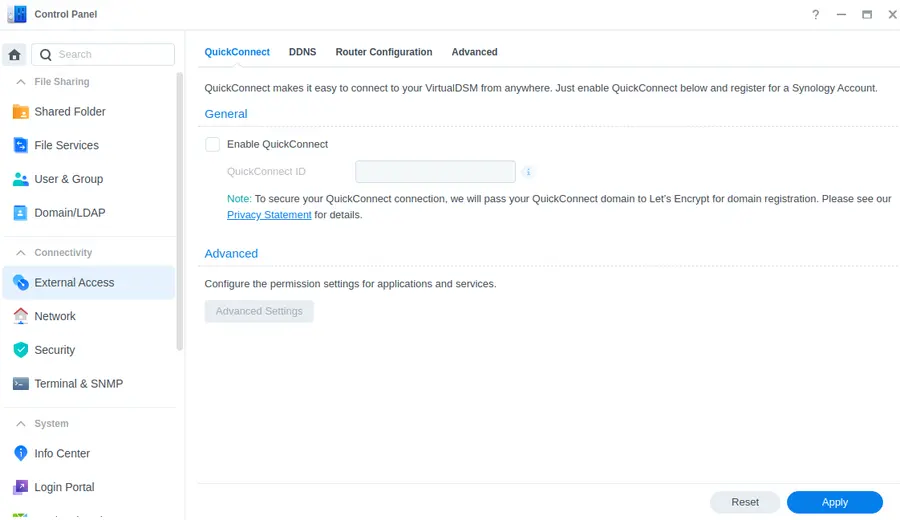
Go to Control Panel → External Access → QuickConnect. Check that Enable QuickConnect is ticked and the QuickConnect ID is the one you're typing on the other end. QuickConnect is tied to a Synology Account; if that account got signed out (password change, account cleanup, a migrated NAS), the registration lapses quietly. The classic remedy is unglamorous but effective: untick, Apply, tick again, Apply — which re-registers the NAS with Synology.
Fix 3 — Browser works, app doesn't? Check permissions
On that same page, Advanced Settings (“Configure the permission settings for applications and services”) decides which apps are allowed over QuickConnect. If DSM opens fine in a browser but Synology Photos or DS file on your phone refuses, this is the first place to look: the service you're using has to be allowed here. While you're in the app, retype the QuickConnect ID — a single wrong character produces exactly the same error as a dead server.
Fix 4 — Your NAS forgot what time it is
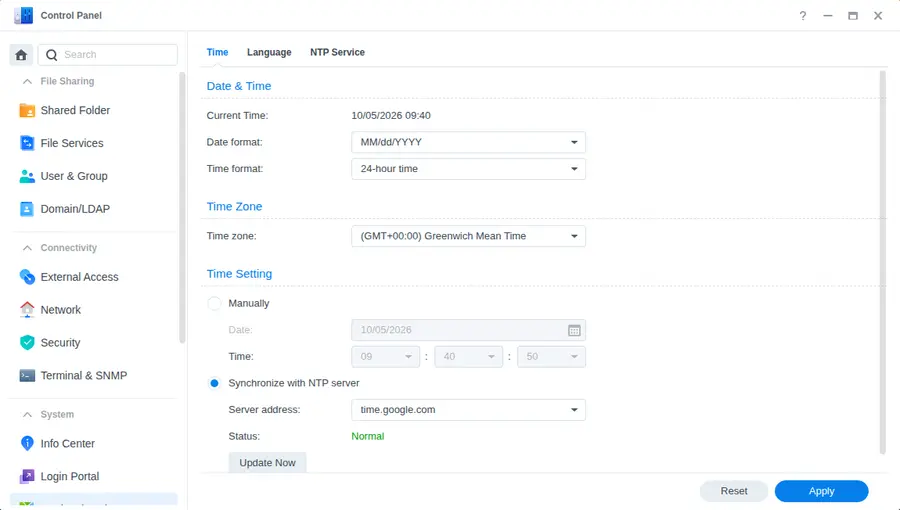
This one sounds absurd and fixes a lot. Encrypted connections check certificates, and certificates have validity dates; a NAS whose clock has drifted (or reset after a power cut) can fail those checks and quietly drop off QuickConnect. Go to Control Panel → Regional Options → Time, pick Synchronize with NTP server, and hit Update Now. You want the status to say Normal.
Fix 5 — DNS: the NAS can't find Synology
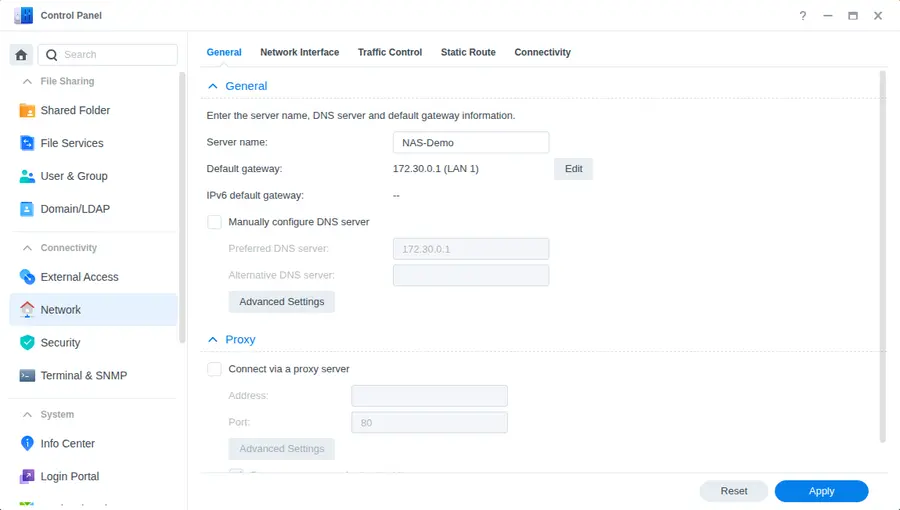
If the NAS can't resolve names, it can't find Synology's servers, and QuickConnect fails while everything looks perfect on your LAN. Open Control Panel → Network → General. By default DSM takes DNS from your router; if the router's DNS is flaky (or you changed routers and the NAS kept an old static setting), tick Manually configure DNS server and enter a public resolver such as 1.1.1.1 or 8.8.8.8. While you're here, make sure the Default gateway is your actual router.
Fix 6 — Firewall, auto block, and old firmware
If QuickConnect died the same week you got serious about security, look at Control Panel → Security. An overly strict firewall profile or auto-block list can get in the way. The safe test: temporarily switch the firewall off, try QuickConnect, then turn it back on and fix the specific rule — don't leave it off because it “works now”. And check Control Panel → Update & Restore: an outdated DSM is a security problem on its own, and updates regularly touch the networking bits QuickConnect relies on.
Fix 7 — “It works, but it's unbearably slow”
Here's the honest answer nobody enjoys: there's nothing to fix in DSM. QuickConnect tries a direct connection first. When your network won't allow one — strict NAT, carrier-grade NAT (CGNAT), a hotel Wi-Fi that treats you like a suspect — it falls back to Synology's shared relay, which is rate-limited by design. You can sometimes coax out a direct path (the QuickConnect page has a Router Configuration tab for port forwarding), but that means opening ports to the internet, which is the thing most people turned to QuickConnect to avoid.
The alternative is a tool that's direct-first by construction: Tailscale, or RocketZero, both built on WireGuard, connect peer-to-peer whenever the network allows and only use a relay as a last resort. We compared all the options in Synology QuickConnect alternatives.
Fix 8 — “I can't map my drive over QuickConnect”
You're not doing it wrong — it simply doesn't do that. QuickConnect carries DSM and Synology's own apps; it doesn't carry SMB, the protocol behind a mapped Z: drive in File Explorer or a share in Finder. Asking QuickConnect for a drive letter is like asking a very good receptionist to also be the filing cabinet.
If the drive is what you wanted all along, that's precisely the job RocketZero does: install the package from Package Center, install the desktop app for Windows or macOS, and your shares show up as real drives — from anywhere, no port forwarding, no separate account (you sign in with your existing NAS username and password). The drive path is end-to-end encrypted with WireGuard. You also get an id.roze.to address that opens DSM in a browser — honest footnote: that browser path runs through our hosted proxy, like QuickConnect's relay, so it isn't end-to-end encrypted; the drive mount is.
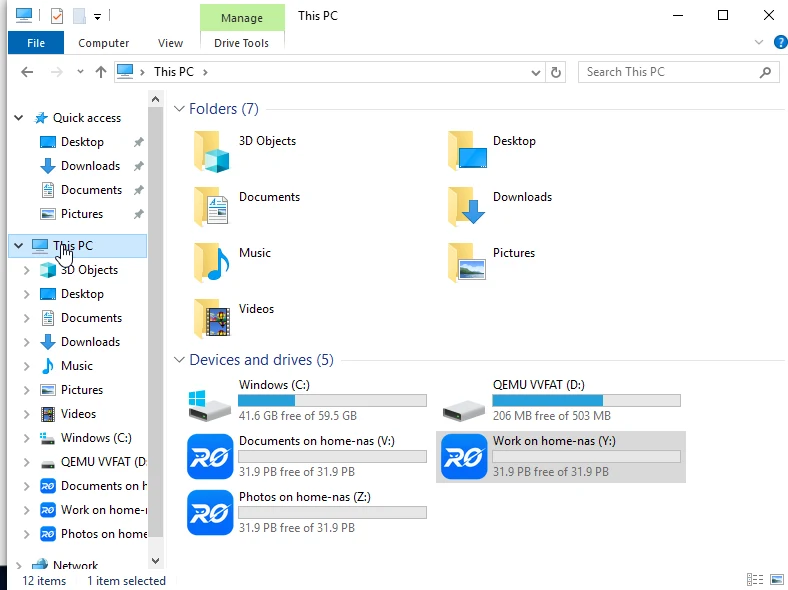
RocketZero ships today for Synology DSM 7, OpenMediaVault 7 and TrueNAS SCALE, with desktop apps for Windows and Apple Silicon Macs. The full walkthrough is in the RocketZero setup guide, or see it step by step for DSM: access your Synology remotely with RocketZero.
Still broken? The boring checklist
- Reboot the NAS after a DSM update — some network changes only apply on restart.
- Test from a different network (phone hotspot). If it works there, the problem is the network you were on, not your NAS.
- Try the LAN address at home. If DSM won't even open locally, QuickConnect isn't the problem — the NAS is.
- Ask Synology support — QuickConnect is their service, and they can see the registration side you can't.
FAQ
Why is my Synology QuickConnect not working all of a sudden?
If nothing changed on your side, check Synology's service status page first — QuickConnect runs on Synology's servers, so an incident there breaks it for everyone at once. If the status is Operational, the usual suspects on the NAS are a clock that drifted (NTP), DNS that stopped resolving, or a DSM update that needs a reboot. Toggling QuickConnect off and on again re-registers the NAS and fixes a surprising share of cases.
Why does QuickConnect work in the browser but not in the Synology app?
Usually permissions. In Control Panel → External Access → QuickConnect, the Advanced Settings button controls which applications and services are allowed over QuickConnect. If the app you use isn't ticked there, the browser works and the app doesn't. Also double-check the QuickConnect ID typed into the app — one wrong character looks exactly like a dead server.
Why is QuickConnect so slow?
Because you're probably on the relay. QuickConnect tries a direct connection first; when your network (strict NAT, CGNAT, a locked-down office or hotel Wi-Fi) won't allow it, traffic goes through Synology's shared relay servers, which are rate-limited. That isn't a setting you can fix on the NAS — you either make a direct path possible or use a tool that connects peer-to-peer.
Can I map a network drive over QuickConnect?
No. QuickConnect carries DSM and Synology's own apps (web and mobile); it does not carry SMB, so there's no \\NAS\share drive letter or Finder share over it. If “not working” means “I can't map my drive”, that's by design — you need a VPN or a drive-mount tool such as RocketZero.
Does QuickConnect work behind CGNAT?
Yes — it was built for that, because the NAS dials out to Synology rather than waiting for inbound connections. The catch is that CGNAT often blocks the direct path, so you're likely to land on the slower relay. RocketZero also works behind CGNAT and likewise falls back to an encrypted relay only when hole-punching fails.
Done debugging the relay?
RocketZero mounts your Synology as a drive — direct peer-to-peer when your network allows, no port forwarding, no extra account. Free to get started.
Download RocketZero Read the setup guide