Blog · Guide
How to map a network drive on Mac (and keep it working away from home)
Windows has a button literally called “Map network drive”. macOS has… ⌘K, a text box, and an expectation that you already know what smb:// means. Here's the whole thing in plain English: mount the share in Finder, make it come back at every login, fix the usual errors — and the part every other guide skips: what happens when you leave the house.
TL;DR
- Map it: Finder → Go → Connect to Server (
⌘K) →smb://192.168.1.20/ShareName→ Connect → sign in with your NAS account. - Keep it: tick “Remember this password in my keychain”, then add the mounted volume to System Settings → General → Login Items.
- The catch: that address only exists on your home network. At a café it points at nothing, and the drive goes grey.
- Away from home: never expose SMB to the internet. Use a VPN, Tailscale, or RocketZero to get the same Finder volume through an encrypted tunnel.
How to map a network drive on Mac with Finder
“Map a network drive” is Windows vocabulary. On a Mac you connect to a server and the share mounts as a volume. Same idea, fewer drive letters. You need three things: the NAS's address, the share name, and a NAS account that's allowed to open it.
- Turn on SMB on the NAS. On Synology it's Control Panel → File Services → SMB; on OpenMediaVault, Services → SMB/CIFS; on TrueNAS SCALE, create an SMB share and start the SMB service. SMB is the protocol macOS prefers — skip AFP, Apple deprecated it years ago.
- Open Connect to Server. In Finder, choose Go → Connect to Server, or press
⌘K. - Type the address.
smb://192.168.1.20/Documents— the NAS's IP (or its name, likesmb://mynas.local) followed by the share. Leave the share off and macOS will ask which one you want. - Save it (optional, recommended). Click the + button to add the address to your favourite servers so you never type it again.
- Connect and sign in. Choose Registered User, enter your NAS username and password, and tick Remember this password in my keychain.
The share appears in the Finder sidebar under Locations and lives at /Volumes/Documents. Want it on the desktop like a proper disk? Finder → Settings → General → tick Connected servers. Congratulations, you've mapped a network drive on a Mac. Nobody will give you a certificate, but you deserve one.
Terminal people: open 'smb://you@192.168.1.20/Documents' does the same thing, keychain and all.
Make the drive reconnect automatically at login
Out of the box, a mounted share lasts exactly until you restart. To make macOS remount it every time you log in:
- Mount the share once (above), with the password saved to your keychain.
- Open System Settings → General → Login Items (macOS Sequoia and later call it Login Items & Extensions).
- Under Open at Login, click +, go to your mounted volume (it's under the Mac's name in the sidebar, or press
⇧⌘Gand type/Volumes) and add it.
Each login, macOS reconnects and opens a Finder window on the share. One honest limit: it can only reconnect to an address it can reach. Log in at home and it's seamless; log in at the airport and you get an error dialog as a souvenir.
“There was a problem connecting to the server” — quick fixes
- Use the IP, not the name.
.localnames rely on Bonjour and occasionally just don't resolve. The IP from your router's device list always works on the LAN. - Check the share and permissions. The share name is case-sensitive in some setups, and your NAS account needs read/write rights on that shared folder — not just a valid login.
- Check the SMB version on the NAS. macOS speaks SMB2/SMB3. If the NAS is set to SMB1 only, raise the minimum; SMB1 is old enough to have its own museum.
- Clear a stale keychain entry. Changed your NAS password? Delete the old one in Keychain Access, or macOS will keep politely submitting the wrong password.
- Check where you are. If you're not on the NAS's network, nothing on this list will help — that's the next section.
Why your mapped drive dies when you leave home
192.168.1.20 is a private address. Every home network on Earth has one, and they all point at different things. When you leave, your Mac is still faithfully asking for 192.168.1.20 — it's just asking the café's router, which has never heard of your NAS.
So the question becomes: how do you get your Mac back “inside” your home network, safely? The tempting shortcut is to forward port 445 on your router straight to the NAS. Please don't. SMB on the open internet is a favourite of ransomware crews and bots that scan the whole internet daily. Here's how the real options compare:
| Option | Works away from home? | Real Finder volume? | Open ports | Effort |
|---|---|---|---|---|
| Finder ⌘K, at home | ✗No — LAN only | ✓Yes | ✓None | Low |
| Forward SMB port 445 | ~Technically | ✓Yes | ✗445 to the world (please don't) | Medium |
| VPN to home (router / NAS VPN server) | ✓Yes | ✓Yes, over the VPN | ~One VPN port + DDNS | High |
| Tailscale | ✓Yes | ✓Yes, via the tailnet IP | ✓None | Medium |
| RocketZero | ✓Yes | ✓Yes — mounted for you | ✓None | Low |
A VPN to your home network
Run a VPN server on your router or the NAS (Synology has VPN Server; WireGuard on a router is great), connect from the Mac, and your old smb://192.168.1.20 address works again. Rock solid once set up. The setup is the bill: an open VPN port, a dynamic-DNS name, client profiles, and none of it works if your ISP puts you behind CGNAT.
Tailscale
Install Tailscale on the NAS and the Mac, then connect to the NAS's tailnet address in Finder. No ports, works behind CGNAT, and it's genuinely excellent software. You do end up running a private network with accounts and an admin console — wonderful if you wanted a network; slightly much if you wanted your files. Our honest comparison: RocketZero vs Tailscale.
RocketZero: the NAS mounted in Finder, from anywhere
RocketZero is built for exactly this job. Install the package on the NAS — Synology DSM 7, OpenMediaVault 7 or TrueNAS SCALE — then the Mac app. Enter your RocketZero ID, sign in with your existing NAS username and password (there's no separate RocketZero account), and your shares mount as network volumes in Finder.
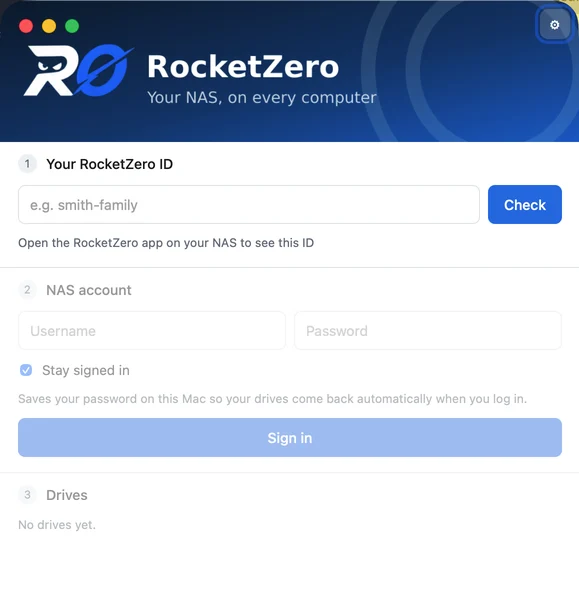
A few things worth knowing, because they're the reason it feels native:
- It's a real network volume. The app mounts through the same macOS networking framework Finder uses for
⌘K. No macFUSE, no kernel extension, no rebooting into Recovery to lower security. - It reconnects for you. With “Stay signed in”, drives come back automatically at login — at home or not. No Login Items fiddling.
- It's encrypted end to end. The drive travels over WireGuard: direct peer-to-peer when the networks allow it, an encrypted relay only when they don't. On a direct path your files never touch our servers; on relay, the relay only sees ciphertext.
- Your password stays in your Keychain — never in plaintext, never on our servers.
- Bonus: every NAS gets an
id.roze.toaddress that opens its web UI in a browser with HTTPS. Honest footnote: that browser path is a hosted reverse proxy (same trust model as Cloudflare Tunnel), so it isn't end-to-end encrypted — the drive mount is.
The macOS app is a universal build (Apple Silicon and Intel, macOS 13 or later). It isn't notarized by Apple yet, so the first launch shows a warning — allow it once in System Settings → Privacy & Security, and you won't see it again for that version. Mild friction, honestly reported. On Windows the same app maps your shares as drive letters; see mapping a Synology drive over the internet.
So which one should you use?
You only need it at home
- Finder
⌘K+ Login Items is all you need. - Use the IP address and save it as a favourite.
- Already run a VPN or Tailscale? Same steps, different address.
You want it everywhere
- Don't forward port 445. Ever.
- Want the NAS in Finder with no router setup? Get RocketZero.
- Step-by-step for your NAS: the RocketZero setup guide.
You shouldn't need a networking certification to open a spreadsheet from the couch — or from a hotel room three time zones away.
FAQ
How do I map a network drive on a Mac?
In Finder, choose Go → Connect to Server (or press ⌘K), type the share address such as smb://192.168.1.20/Documents, click Connect, and sign in as a Registered User with your NAS username and password. The share mounts in Finder under Locations and in /Volumes. Click the + in the Connect to Server window first if you want to save the address as a favourite.
How do I make a mapped drive reconnect automatically on macOS?
Mount the share once and tick “Remember this password in my keychain”. Then open System Settings → General → Login Items (called Login Items & Extensions on newer macOS), click + under Open at Login, and pick the mounted volume. At every login macOS remounts it — as long as the NAS is reachable from the network you're on.
Why can't my Mac connect to the server?
The usual suspects: SMB isn't enabled on the NAS, the .local name isn't resolving (try the IP address instead), the account has no permission on that share, or — the big one — you're not on the same network as the NAS. A LAN address like 192.168.1.20 only exists at home; from anywhere else it points nowhere.
Can I map a NAS drive on a Mac over the internet?
Yes, but don't do it by exposing SMB (port 445) to the internet — it's one of the most attacked ports there is. Use an encrypted tunnel instead: a VPN to your home network, Tailscale, or RocketZero, which mounts your NAS as a real network volume in Finder over WireGuard with no port forwarding.
Does RocketZero work on Intel Macs?
Yes. The current macOS app is a universal build for Apple Silicon and Intel Macs running macOS 13 or later. It isn't notarized by Apple yet, so on first launch macOS shows a warning and you allow it once in System Settings → Privacy & Security.
Do I need macFUSE or a kernel extension?
No. RocketZero mounts shares through the same macOS networking framework Finder uses for Connect to Server, so the drive is an ordinary SMB network volume — no macFUSE, no kernel extension, no lowering security in Recovery mode.
Your NAS in Finder, from anywhere
RocketZero mounts your NAS as a network drive on Mac and Windows — no port forwarding, no VPN to configure, no extra account. Free to get started.
Download RocketZero Read the setup guide