Guide · TrueNAS SCALE
How to access your TrueNAS from anywhere
Paste one Custom App, pick an address, and your TrueNAS opens as a drive on your computer — from any network on earth. No port forwarding, no cloud account. Here's the whole thing, with real screenshots at every step.
Walkthrough: TrueNAS Custom App → your address → your NAS, reachable anywhere.
What you'll need
- A TrueNAS SCALE system (24.10+) with an Apps pool set
- Your TrueNAS admin login (and one SMB user for file access)
- A Windows or macOS computer for the app
- About 5 minutes
Grab the Custom App config
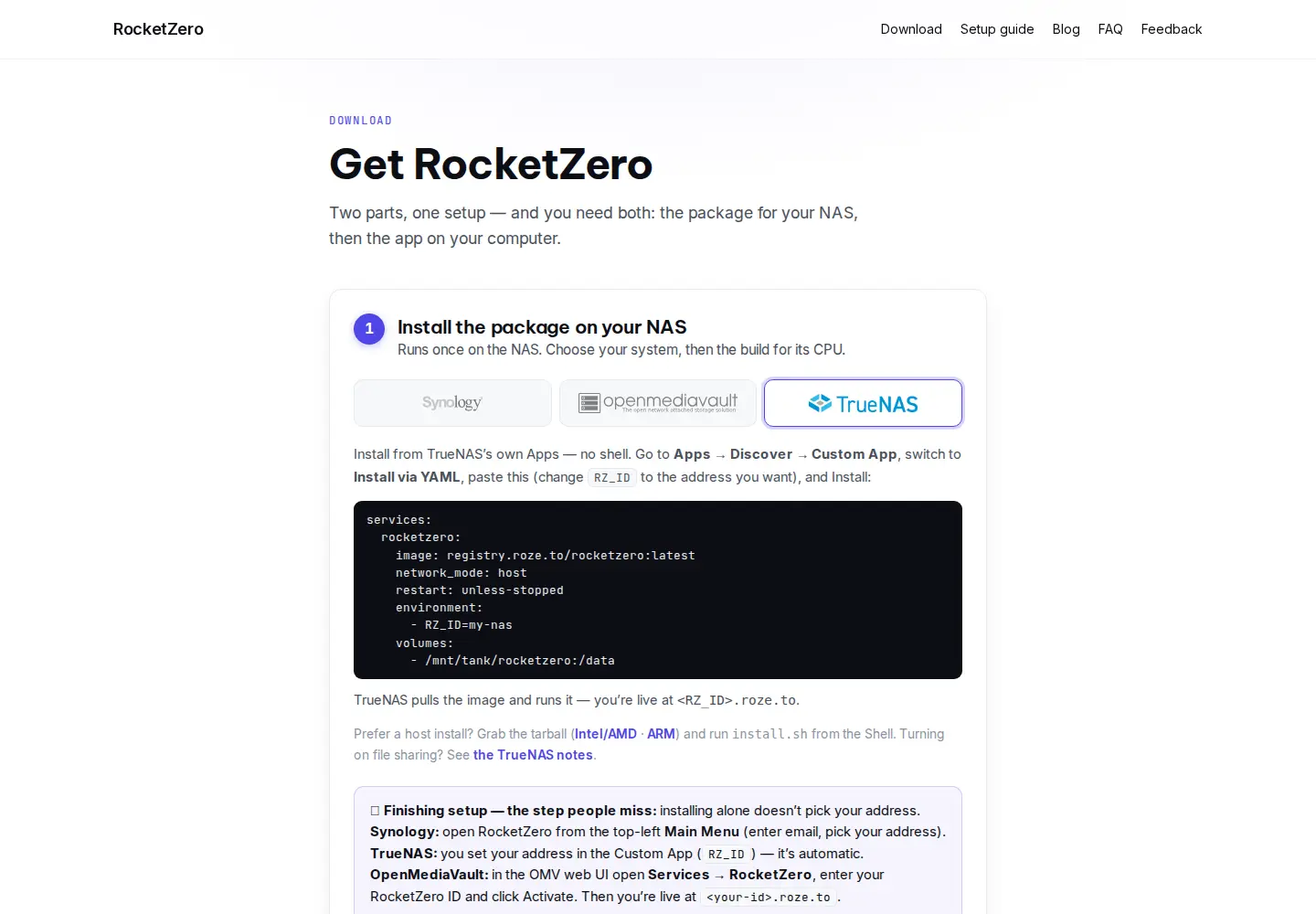
On TrueNAS SCALE, RocketZero installs as a Custom App (Docker) — no plugin, no package file. Head to roze.to/download, choose TrueNAS, and copy the short Docker Compose shown there. You'll paste it in a moment, changing one line to your chosen address.
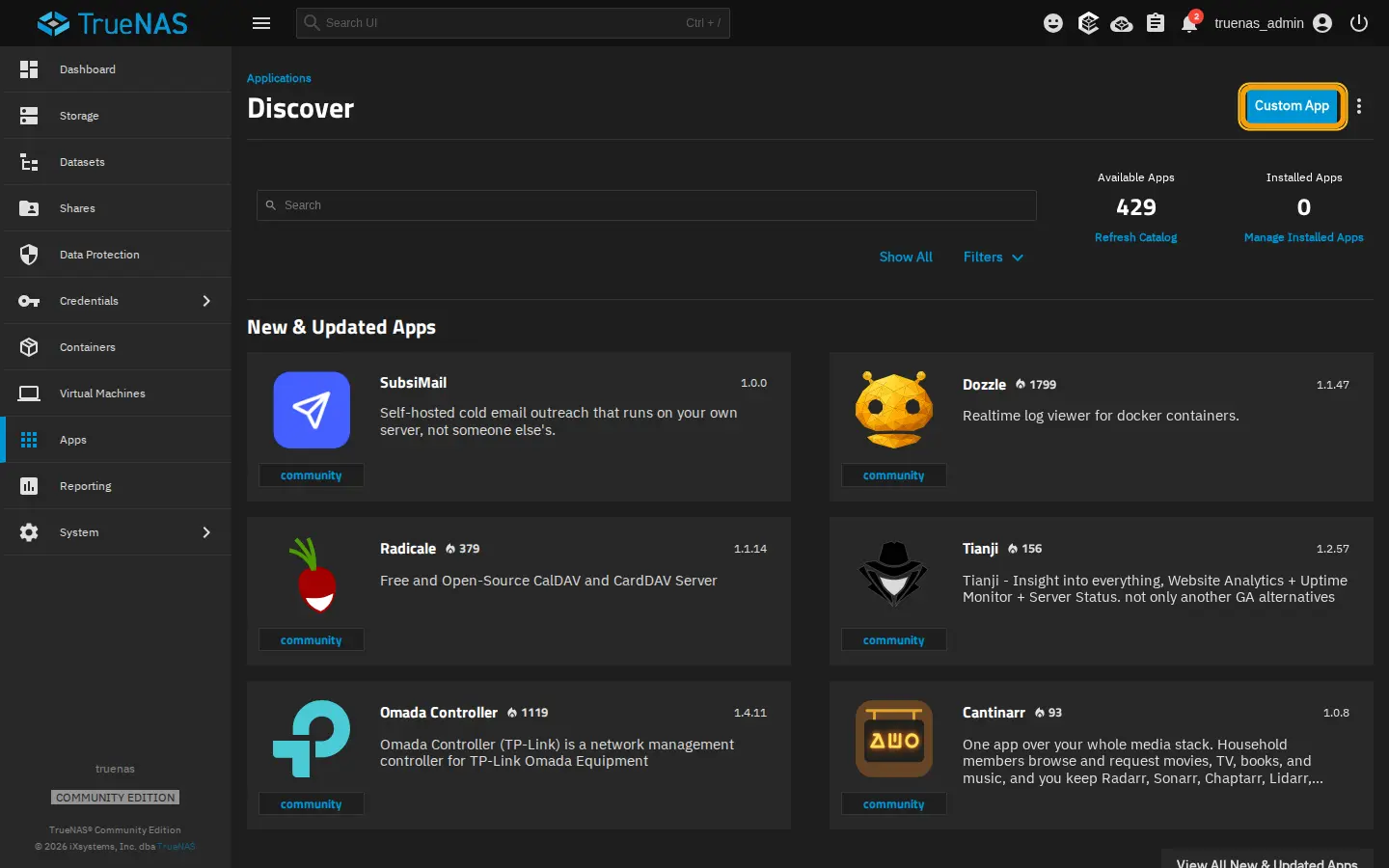
Open Apps → Discover → Custom App
In TrueNAS go to Apps, click Discover Apps, then the Custom App button in the top-right (highlighted above). First time using Apps? Set an Apps pool when prompted — that's just where app data lives.
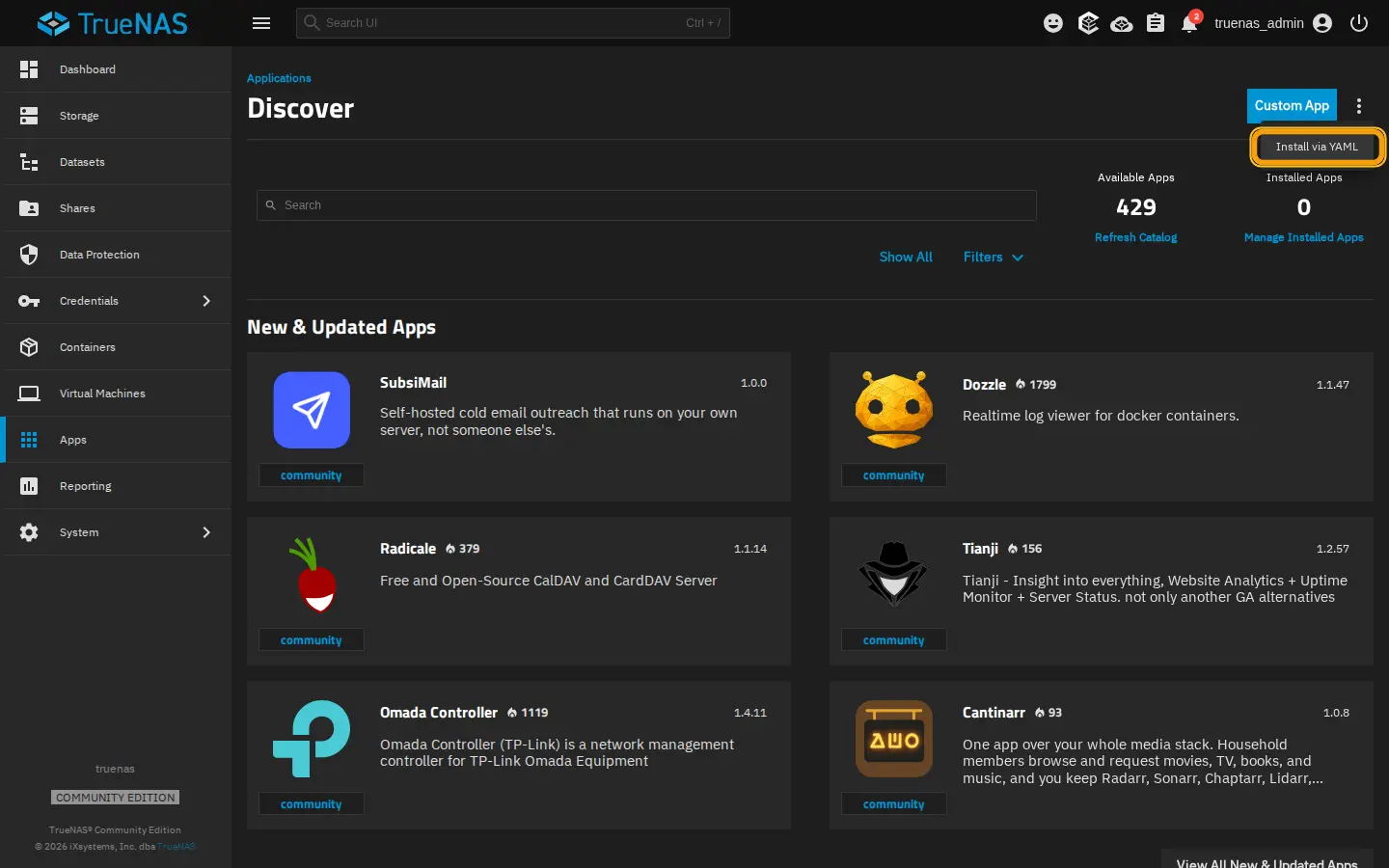
Choose Install via YAML
Next to the Custom App button, open the ⋮ menu and pick Install via YAML (highlighted). This lets you paste the Compose directly instead of filling a long form.
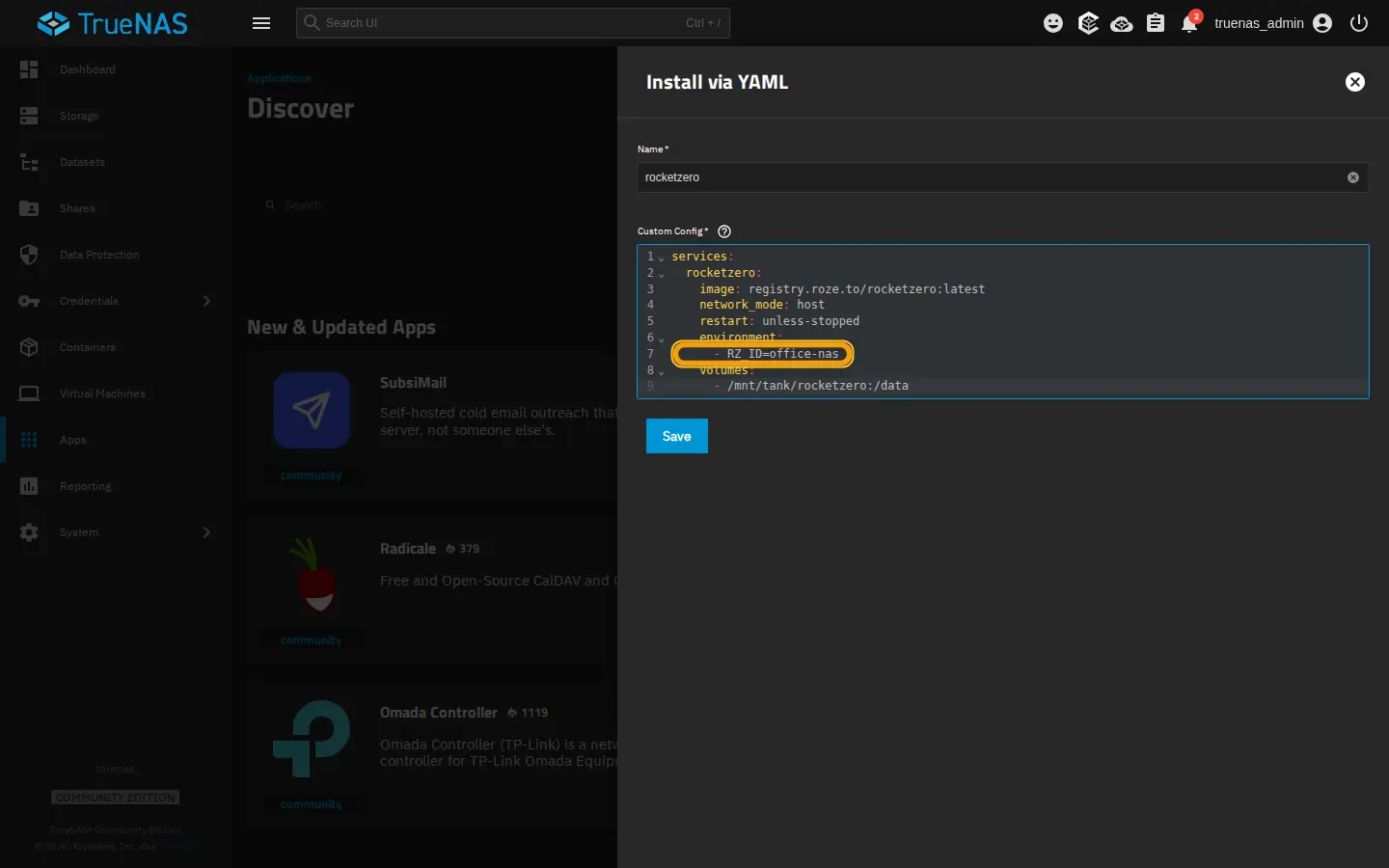
Paste the config and pick your address
Name the app rocketzero and paste the Compose into Custom Config. Change the RZ_ID line (highlighted) to the address you want — that becomes https://<RZ_ID>.roze.to. Then click Save. network_mode: host is required so RocketZero can reach your SMB service and web UI.
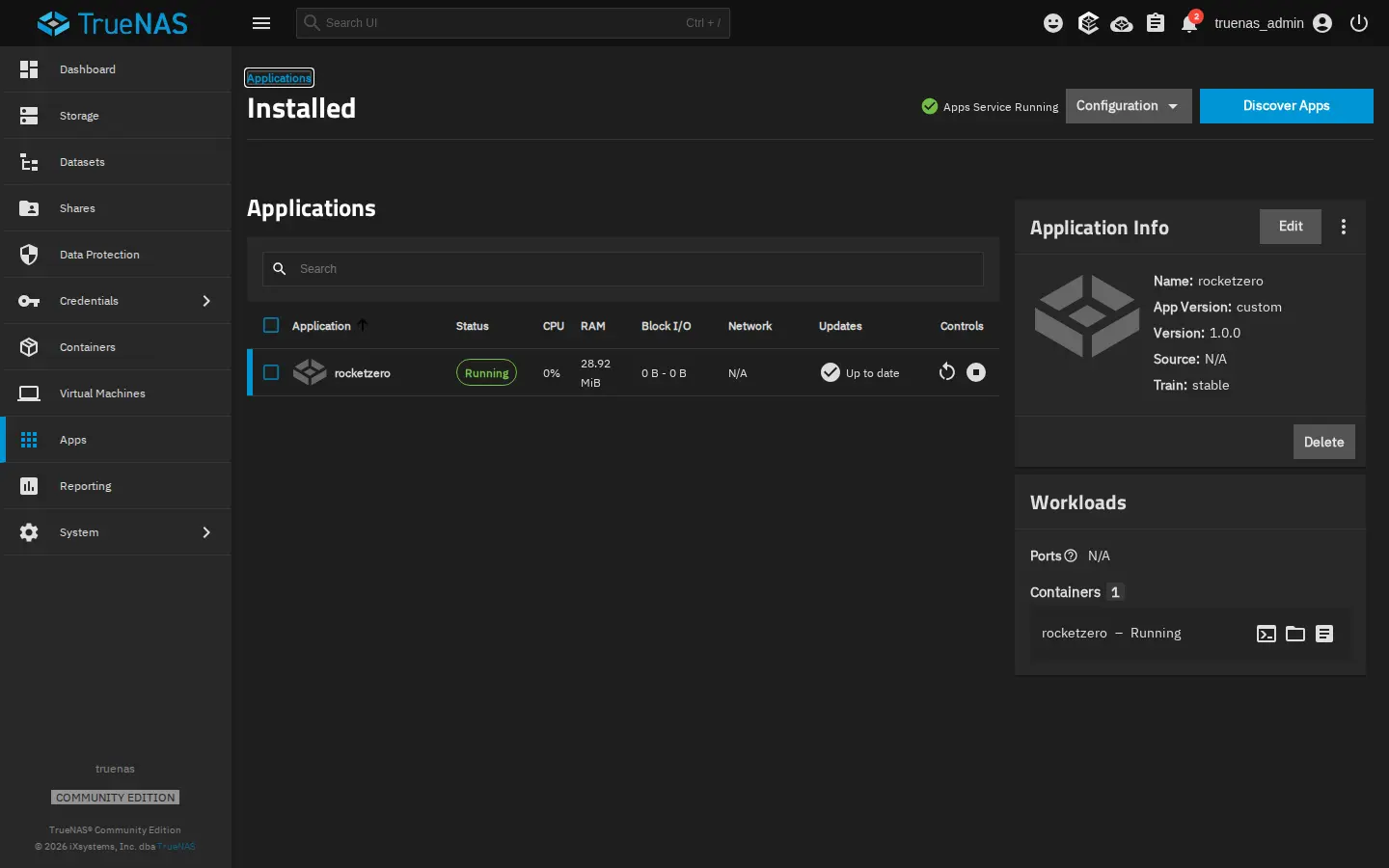
It's running — and already live
TrueNAS pulls the image and starts it. Under Apps → Installed you'll see rocketzero — Running. There's no extra setup: it reads RZ_ID and activates itself. Your TrueNAS is now reachable at your address over an encrypted tunnel — nothing exposed to the internet, and you never touched your router.
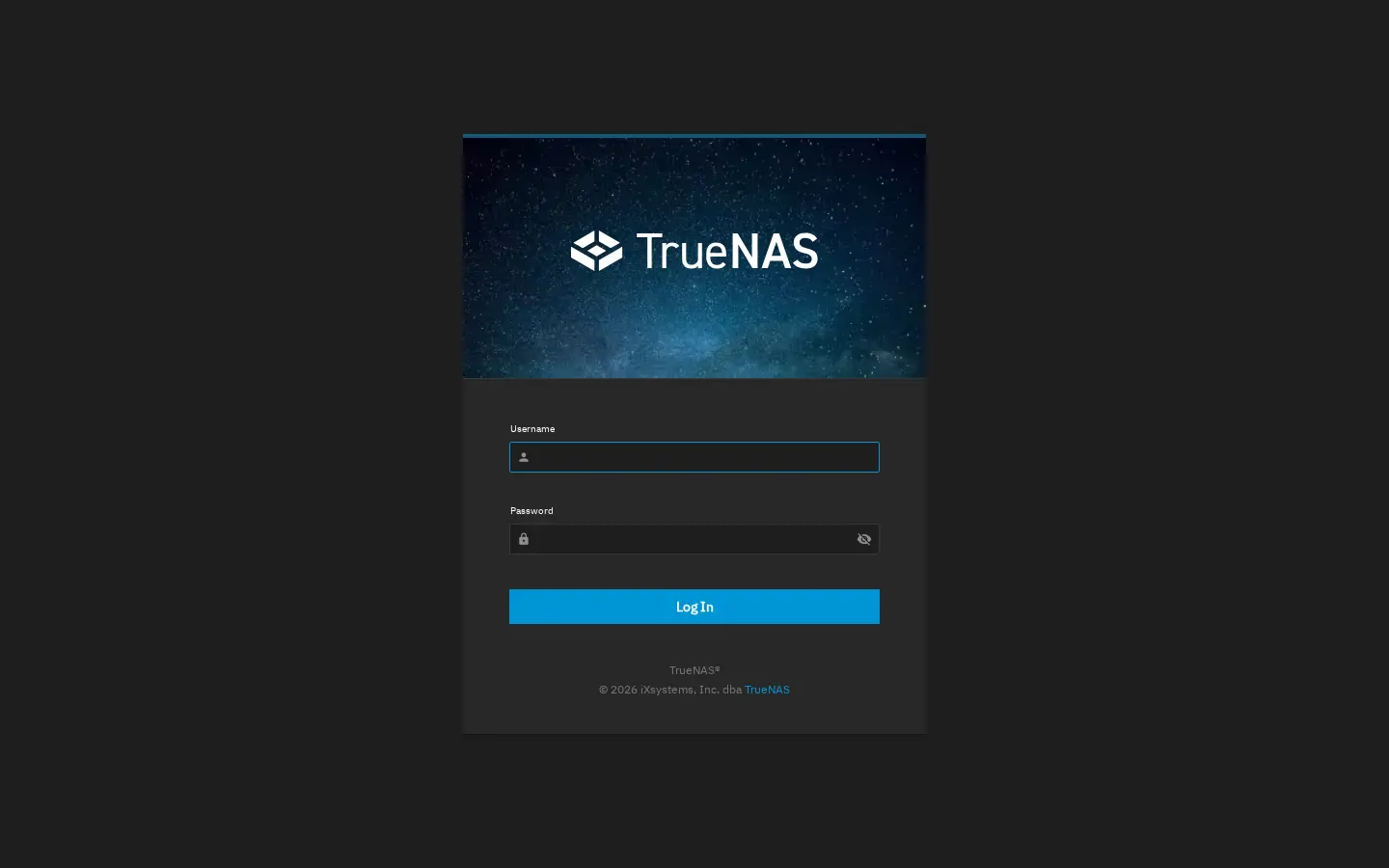
Open your NAS from a browser — anywhere
From any computer or phone in the world, open https://<your-id>.roze.to and you land on your TrueNAS's own login page — the real one, served straight from your NAS over the tunnel. Sign in with your TrueNAS account as usual.
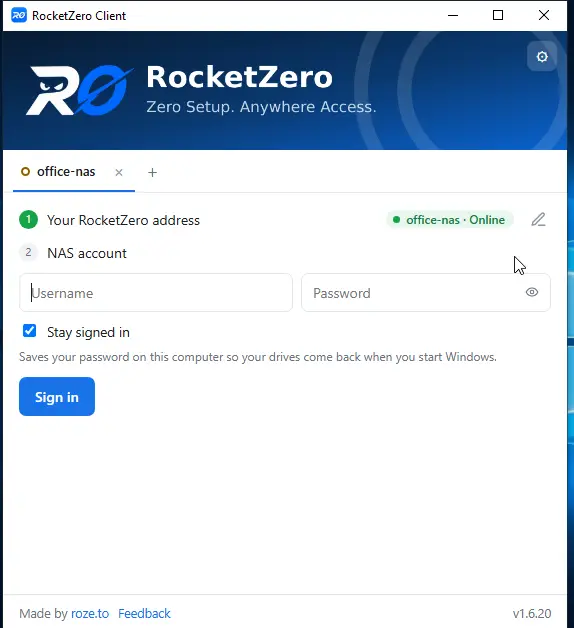
Get the app and connect to your TrueNAS
The real magic is opening your NAS as a drive. Grab the Windows or macOS app from roze.to/download, install it, then enter your RocketZero ID. It finds your TrueNAS and shows it Online. Sign in with a TrueNAS user that has SMB access to your shared folders.
Map a folder and open your files
From here it works exactly like the Synology and OpenMediaVault guides: the app lists your TrueNAS shared folders. Pick one, choose a drive letter, and click Map — it opens in File Explorer and you edit and save files exactly like a local disk, from anywhere. Behind the scenes it's a real SMB connection over an encrypted, direct peer-to-peer link.
Frequently asked questions
Does RocketZero need a TrueNAS plugin or catalog?
No. TrueNAS SCALE runs apps as Docker containers, so RocketZero installs as a Custom App via YAML — no third-party catalog to add. You paste a short Compose, set your address in RZ_ID, and it runs.
Do I need to open ports on my router?
No. RocketZero makes an outbound connection from your TrueNAS, so your router's firewall stays shut. It works behind CGNAT too, where port forwarding is impossible.
Why does the Compose use network_mode: host?
So the container can reach your TrueNAS SMB service (127.0.0.1:445) and web UI directly, then tunnel them out. The overlay runs in userspace, so it doesn't need TUN or extra privileges.
How do I change my address later?
Edit the app in Apps → Installed → rocketzero → Edit, change the RZ_ID value and save. It redeploys and activates the new address; the old one stops working.
The app says my NAS account was rejected — what's wrong?
Make sure you sign in with a TrueNAS user that has SMB enabled and access to the shared folder. The built-in admin account isn't an SMB user by default — create or use a normal user with SMB access.
Open your TrueNAS from anywhere
One Custom App, one address, and your NAS is a drive on every computer you own.
Get RocketZeroWalkthrough music: “Deliberate Thought” by Kevin MacLeod — licensed under Creative Commons Attribution 4.0.