Guide · Synology DSM
How to access your Synology NAS from anywhere
Install one package, pick an address, and your Synology opens as a drive on your computer — from any network on earth. No port forwarding, no QuickConnect, no cloud account. Here's the whole thing, with real screenshots at every step.
75-second walkthrough: Synology → your address → a drive on your PC.
What you'll need
- A Synology NAS running DSM 7 with internet access
- Your DSM admin login (and one DSM user for file access)
- A Windows or macOS computer for the app
- About 5 minutes
Download the RocketZero package
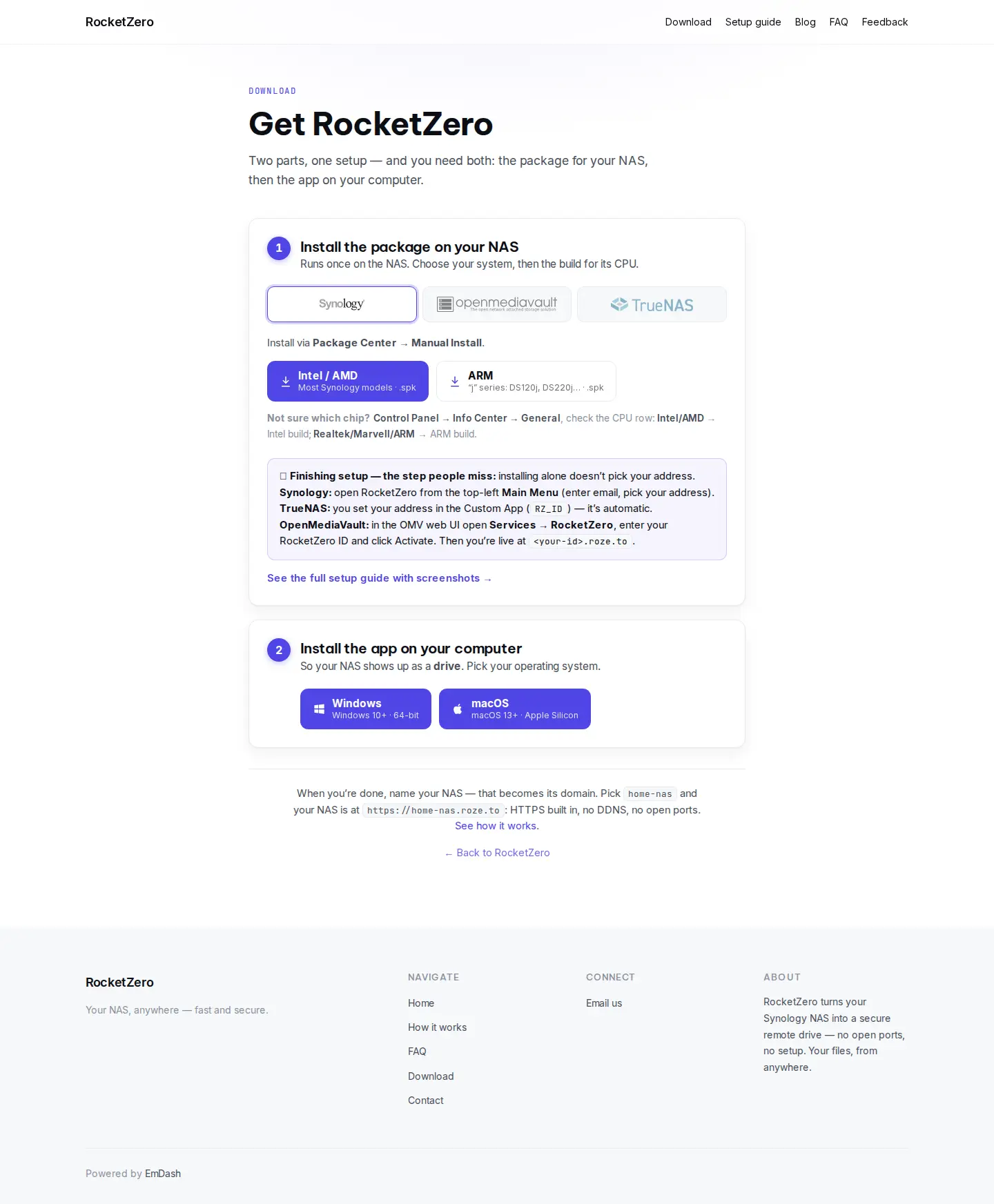
Head to roze.to/download and, under Synology, download the package (.spk) for your NAS's CPU. Not sure which? In DSM open Control Panel → Info Center — an Intel/AMD model takes the x86_64 build; Realtek/Marvell/ARM models take the ARM build.
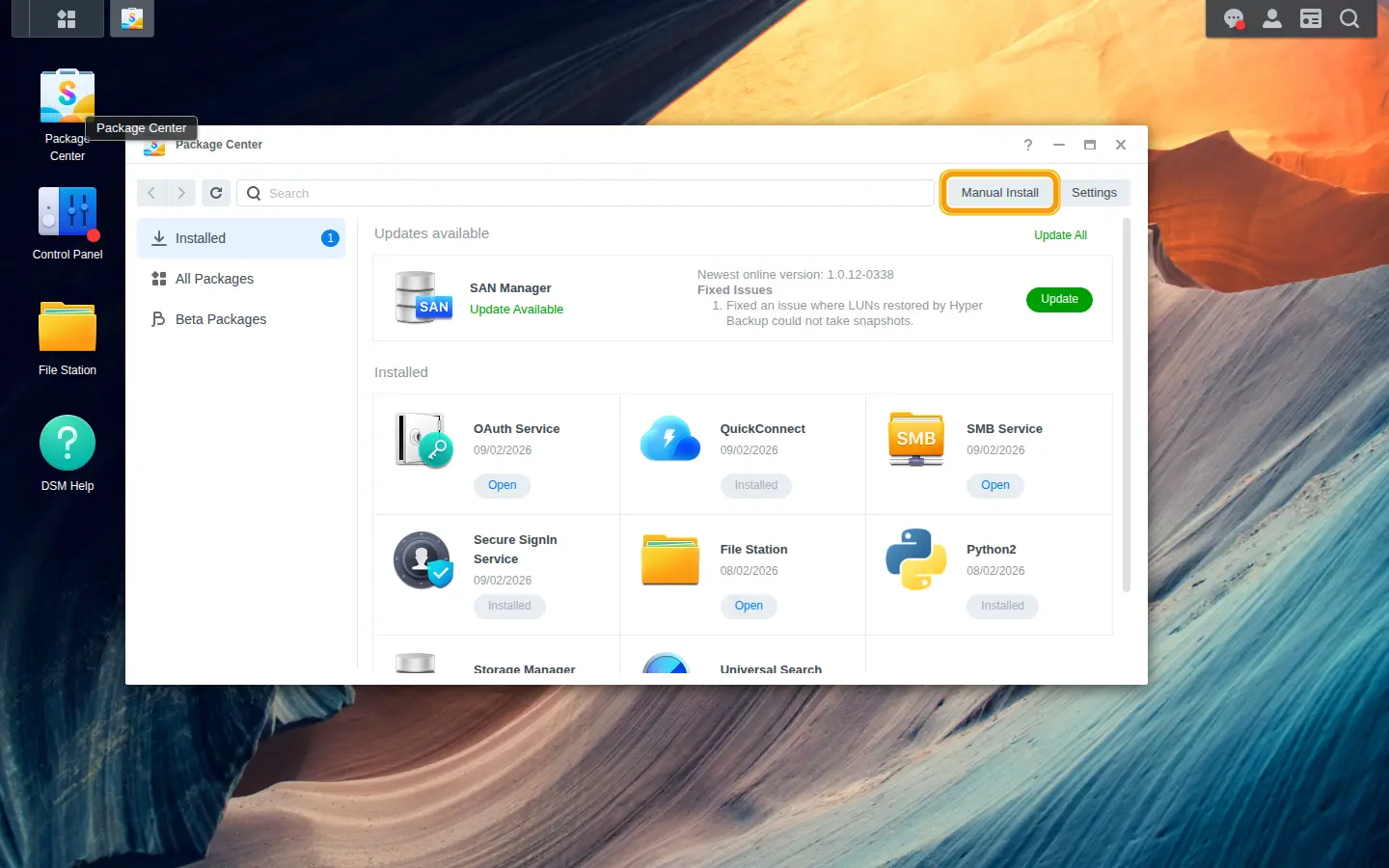
Open Package Center → Manual Install
Open Package Center from your DSM desktop. In the top-right corner, click Manual Install (highlighted above) — that's how you install a package from a file instead of Synology's store.
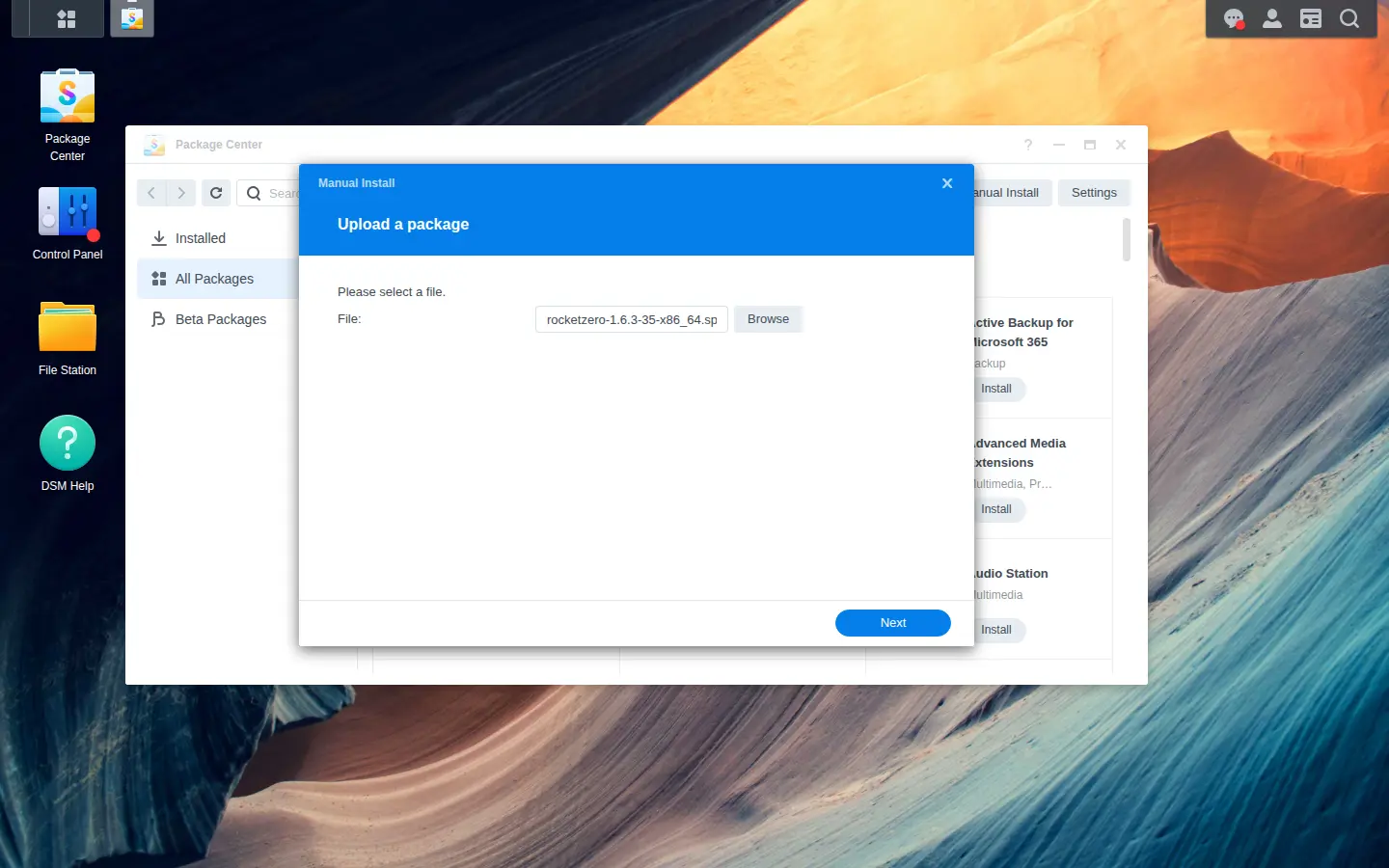
Upload the package and install
Click Browse, choose the .spk you just downloaded, and click Next. DSM notes that it's a third-party package — click Agree, then Done. It installs in a few seconds.
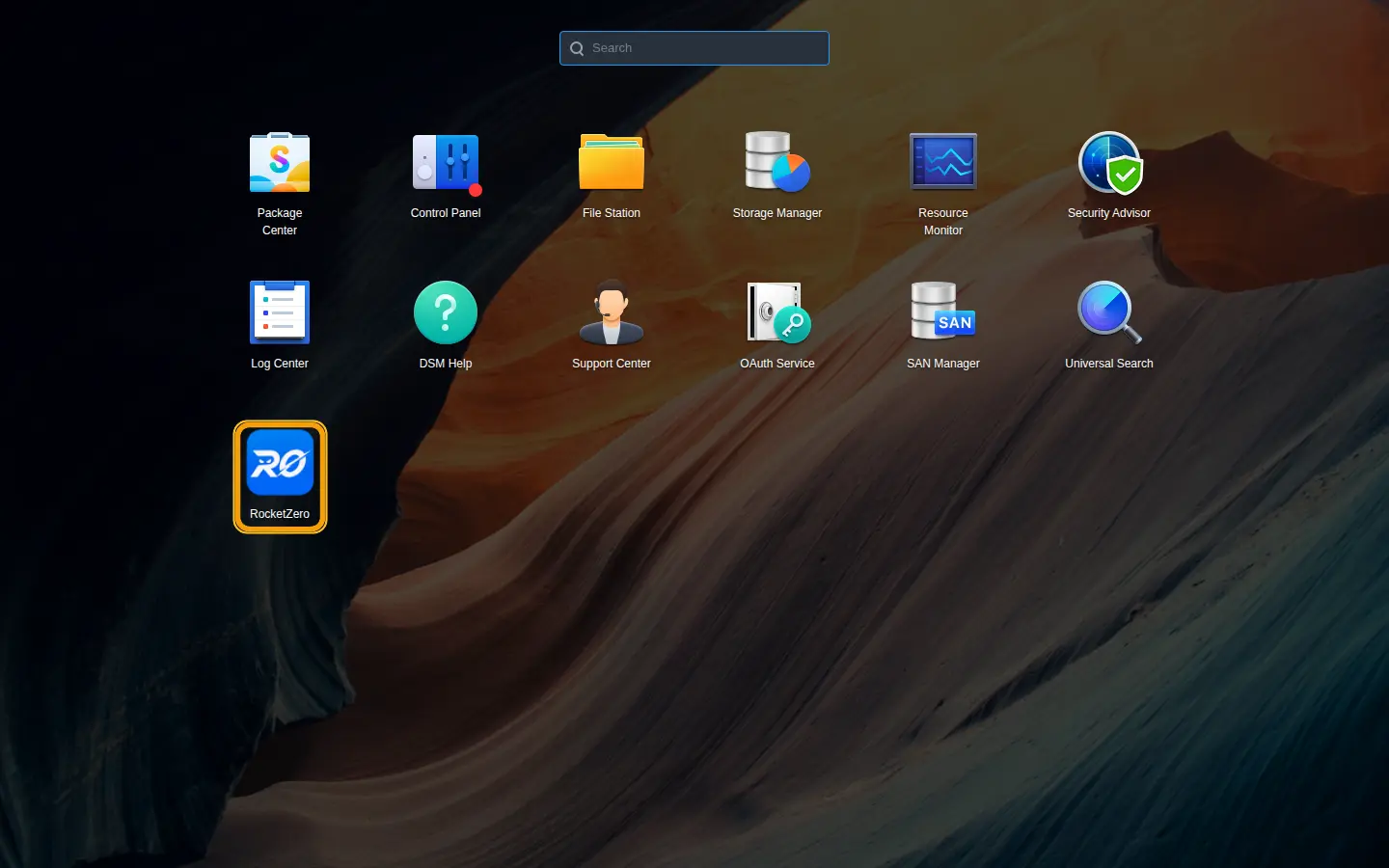
Open RocketZero from the Main Menu
Click the Main Menu button (top-left grid icon) and open RocketZero (highlighted above). You can also launch it from Package Center → Installed → Open.
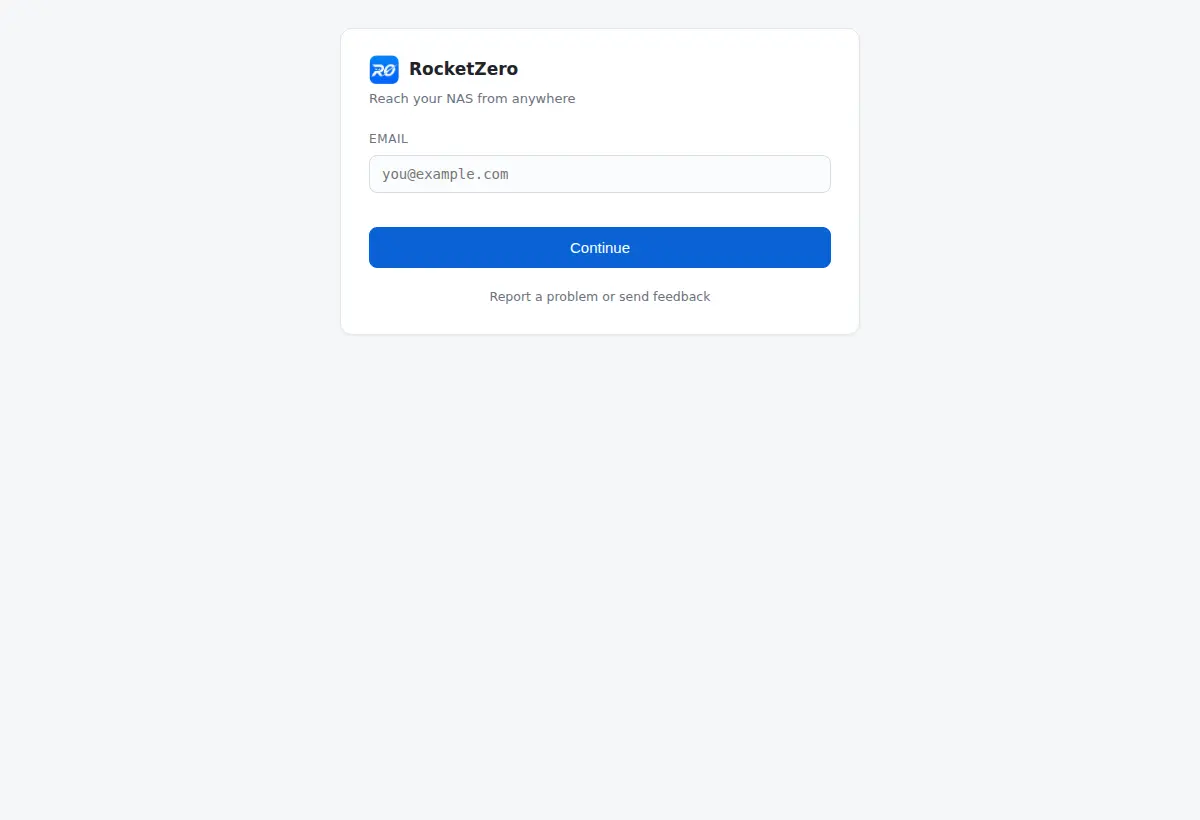
Enter your email
On first run, RocketZero asks for an email — it's how we can reach you about your NAS and important updates. Type it in and click Continue.
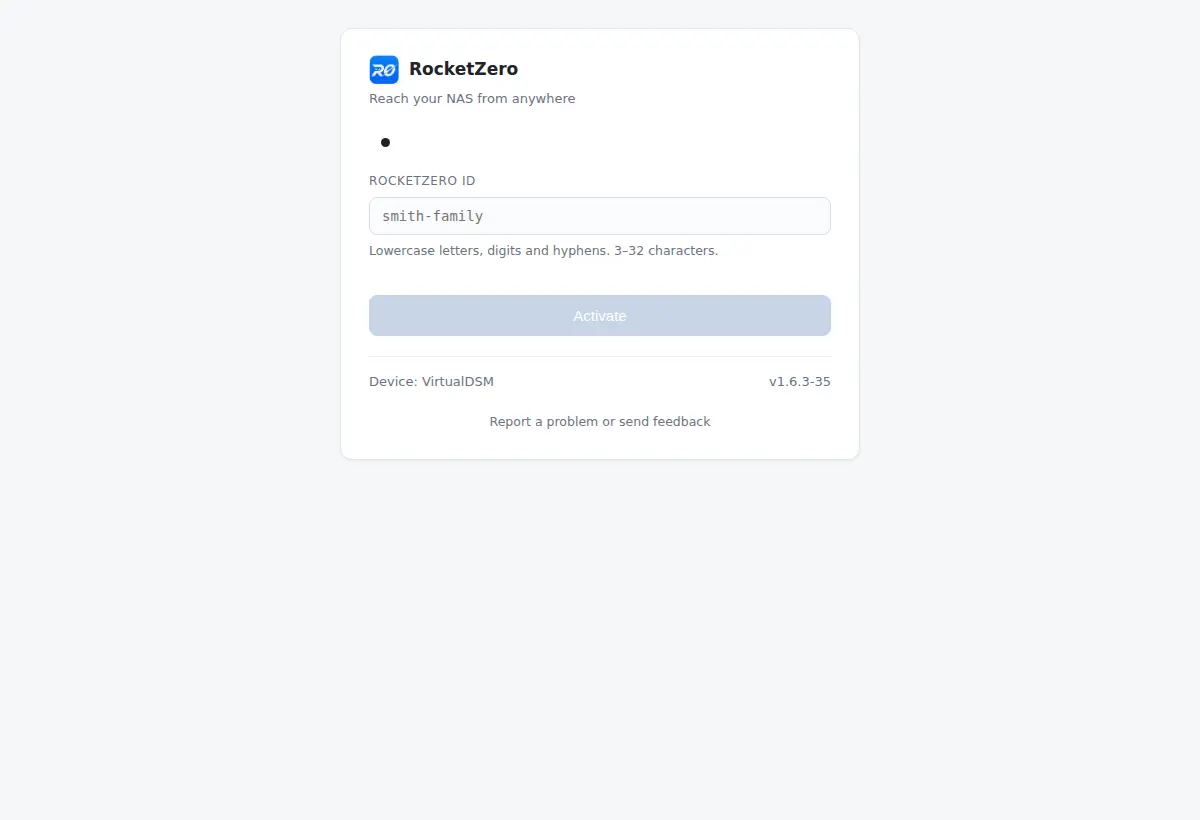
Pick your address and Activate
Choose a short RocketZero ID — lowercase letters, digits and hyphens. That becomes your NAS's permanent address, https://<your-id>.roze.to, with HTTPS built in. Click Activate.
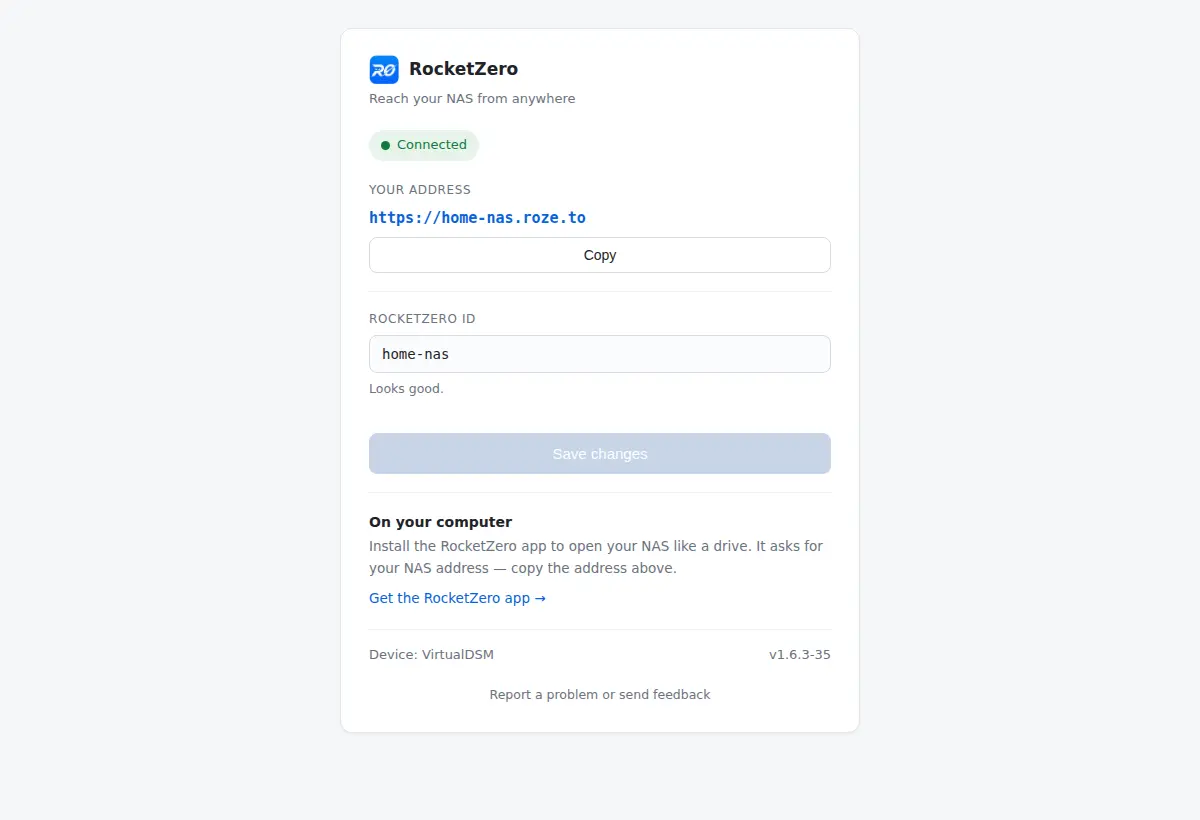
You're connected
Within a few seconds it shows ● Connected and your address. Your DSM is now reachable from anywhere over an encrypted tunnel — nothing is exposed to the internet, and you never touched your router.
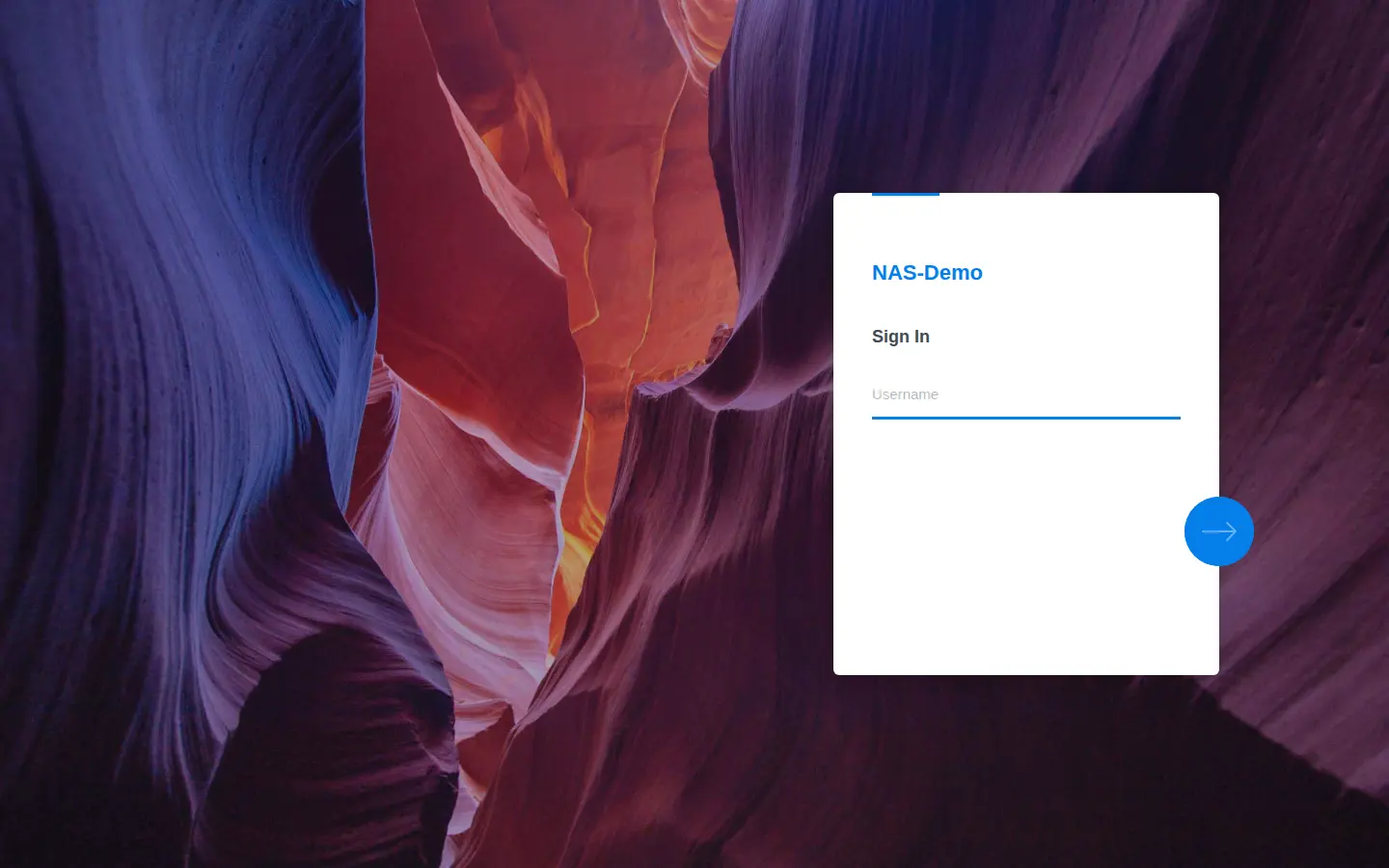
Open your NAS from a browser — anywhere
From any computer or phone in the world, open https://<your-id>.roze.to and you land on your Synology's own DSM login — the real one, served straight from your NAS over the tunnel. Sign in with your DSM account as usual.
Get the app and connect to your Synology
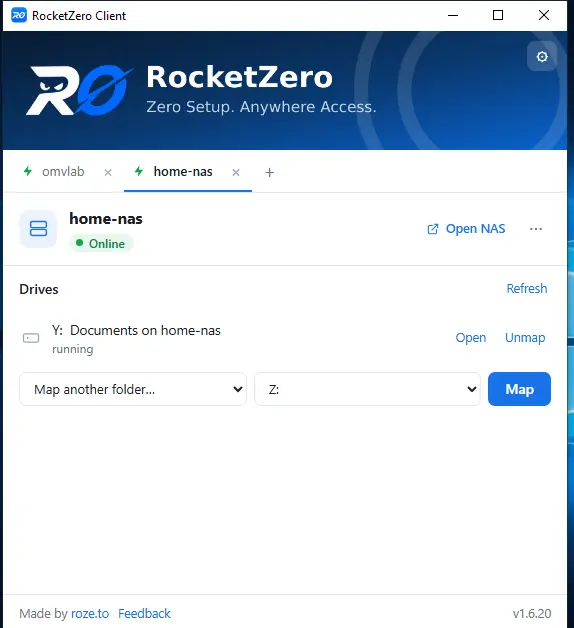
The real magic is opening your NAS as a drive. Grab the Windows or macOS app from roze.to/download, install it, then enter your RocketZero ID. It finds your Synology and shows it Online. Sign in with a DSM account that can reach your shared folders, and tick Stay signed in.
Map a shared folder
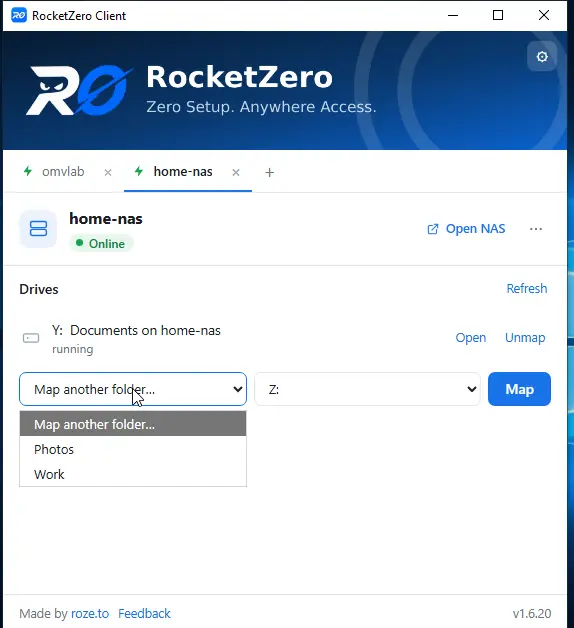
The app lists your Synology shared folders. Pick one, choose a drive letter, and click Map.
Open your files like a local disk
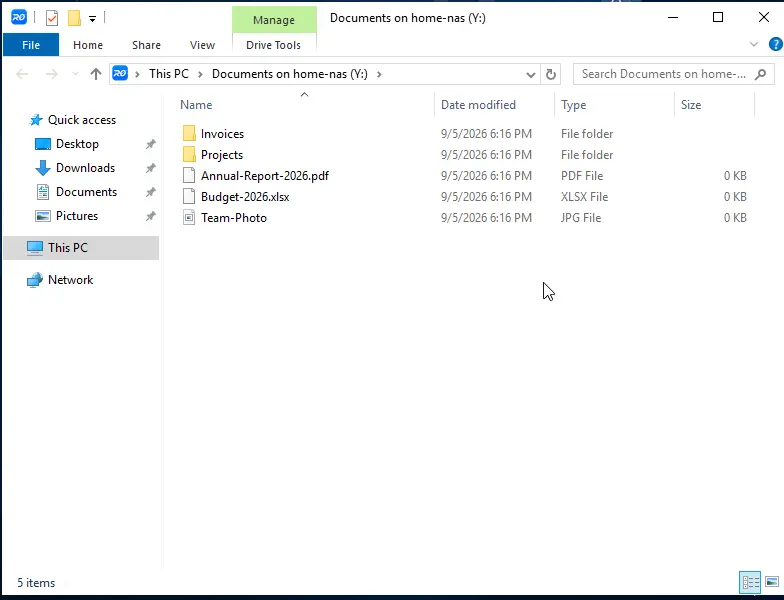
File Explorer opens straight to your new drive. Documents, photos, projects — everything on your Synology, open, edit and save exactly like a local disk, from wherever you are. It's a real SMB connection over an encrypted, direct peer-to-peer link (falling back to an encrypted relay only when the network blocks it).
Frequently asked questions
How is this different from Synology QuickConnect?
QuickConnect gets you into DSM in a browser. RocketZero does that too — your own <id>.roze.to address opens the real DSM login — and goes one step further: it mounts your NAS as a drive on your computer, so files open in File Explorer or Finder like a local disk. No port forwarding either way.
Do I need to open ports on my router?
No. RocketZero makes an outbound connection from your Synology, so your router's firewall stays shut. It works behind CGNAT too, where port forwarding is impossible.
Which Synology models are supported?
Any DSM 7 model — there's an Intel/AMD (x86_64) build and an ARM build. Check Control Panel → Info Center if you're unsure which CPU family your NAS uses.
Is my Synology exposed to the internet?
No. There's no public login page and no forwarded port. Your <id>.roze.to address only answers over RocketZero's encrypted tunnel, and the file connection is a direct, end-to-end encrypted link between your computer and your NAS.
Can I change my address later?
Yes. Reopen RocketZero, edit the RocketZero ID and Activate again. The old address stops working and the app on your computers will need the new one — so only change it if you need to.
Open your Synology from anywhere
Two installs, one address, and your NAS is a drive on every computer you own.
Get RocketZeroWalkthrough music: “Deliberate Thought” by Kevin MacLeod — licensed under Creative Commons Attribution 4.0.