1
Open the TrueNAS web interface
On another computer on the same network, open your NAS's web address and sign in with your admin account. Everything below is in the web interface — no shell needed.
Help · TrueNAS
RocketZero mounts your NAS over SMB. If RocketZero shows File sharing (SMB) — Off, switch it on here. A couple of minutes in the TrueNAS web interface — each step has a real screenshot.
On another computer on the same network, open your NAS's web address and sign in with your admin account. Everything below is in the web interface — no shell needed.
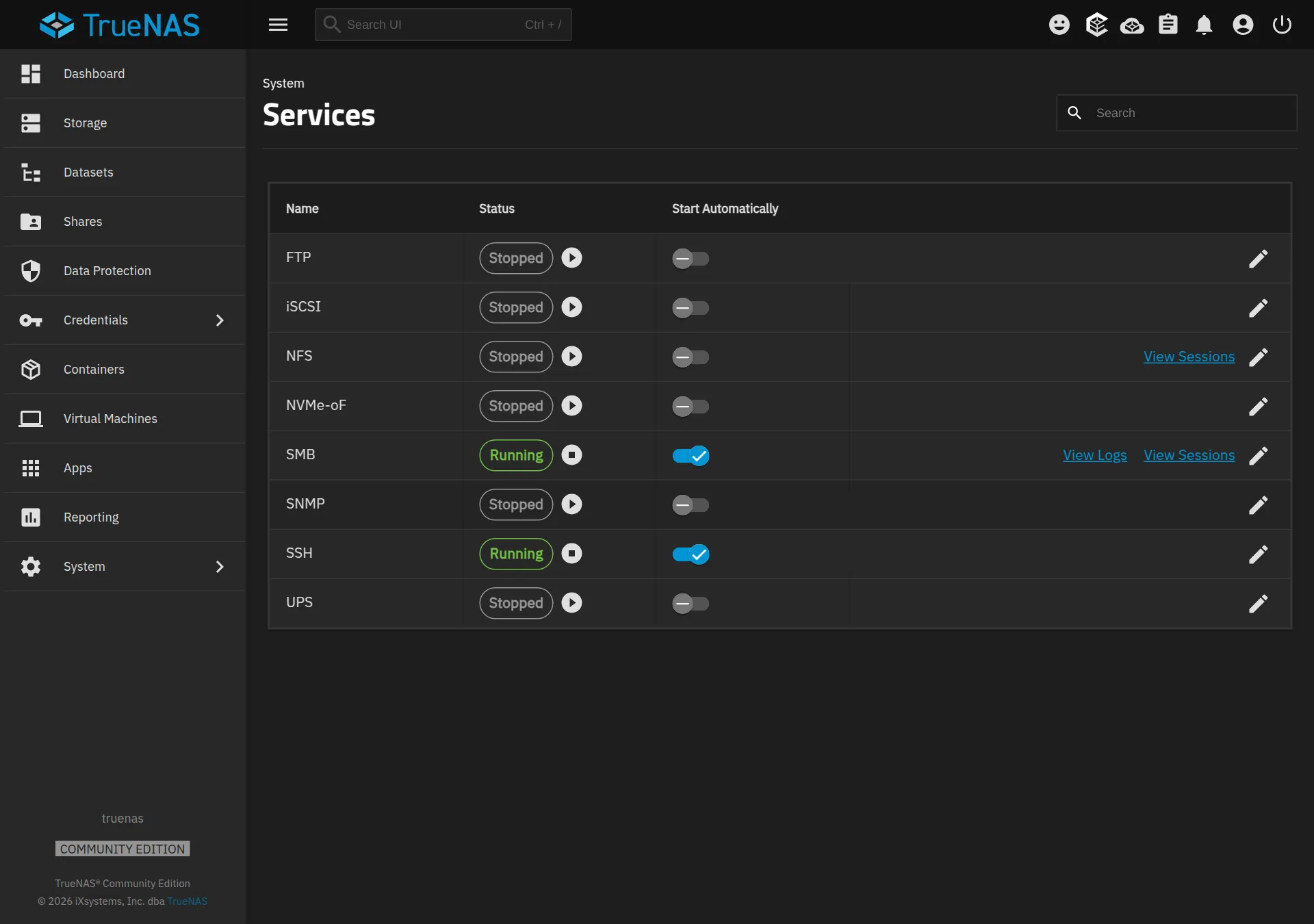
Go to System → Services. Find SMB in the list and flip its Start Automatically toggle on; the status should read Running. That's the switch that makes your NAS answer file-sharing requests.
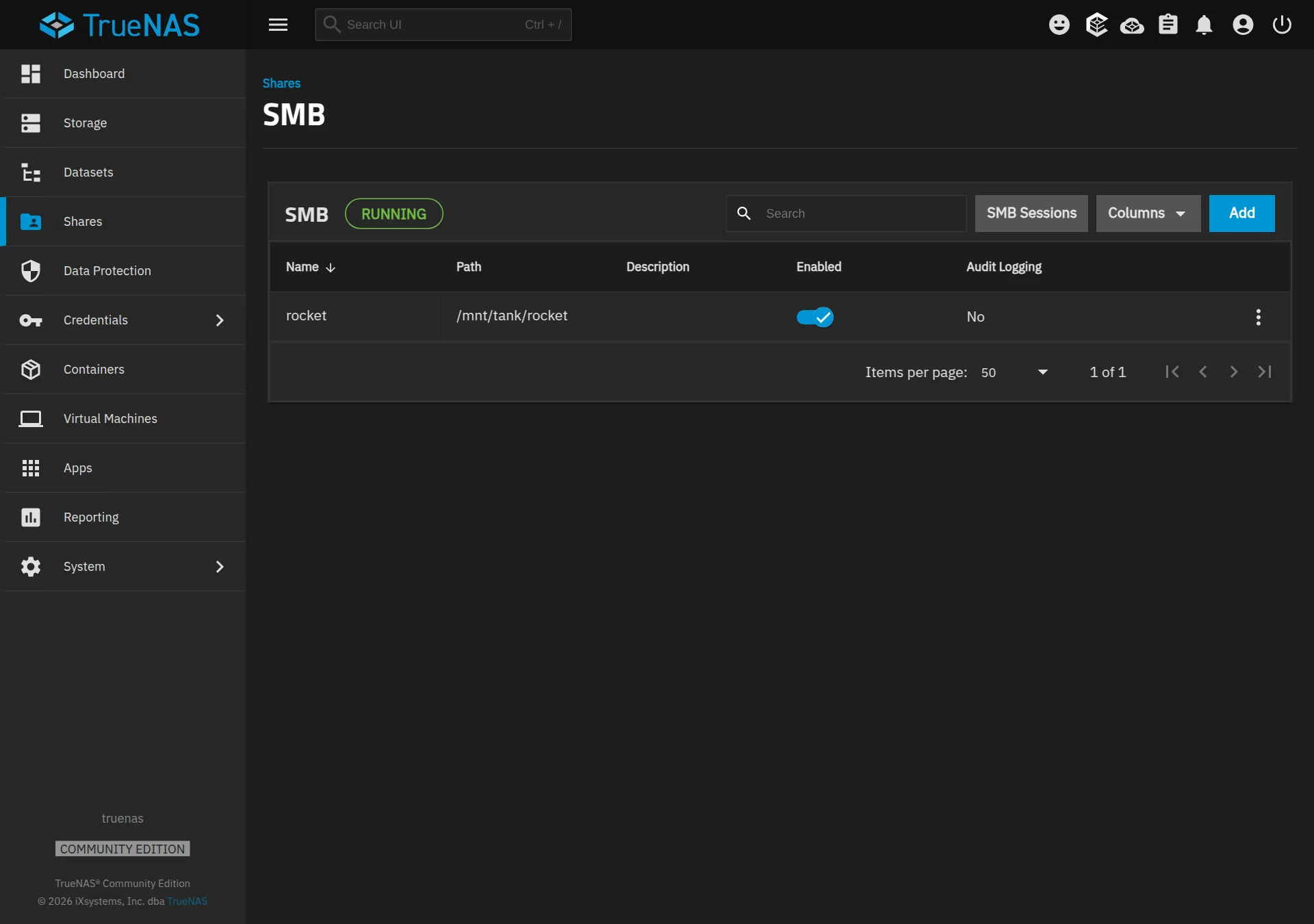
Go to Shares → Windows (SMB) Shares and click Add. Pick the dataset Path you want to share (create one first under Datasets if needed), give it a Name, and Save. If TrueNAS offers to enable the service or restart it, say yes. This folder is what RocketZero opens as a drive.
Reopen the RocketZero page on your NAS. Under On this NAS, File sharing (SMB) now shows On with a shield — shared over RocketZero's encrypted tunnel, not exposed to the internet. Install the RocketZero app on your computer and open your NAS as a drive from anywhere.