1
Open the OpenMediaVault control panel
On another computer on the same network, open your NAS's web address in a browser and sign in with your admin account. Everything below happens in this control panel — you won't touch the command line.
Help · OpenMediaVault
RocketZero mounts your NAS over SMB. If RocketZero shows File sharing (SMB) — Off, switch it on here. Two minutes, all in the web interface — each step has a real screenshot.
On another computer on the same network, open your NAS's web address in a browser and sign in with your admin account. Everything below happens in this control panel — you won't touch the command line.
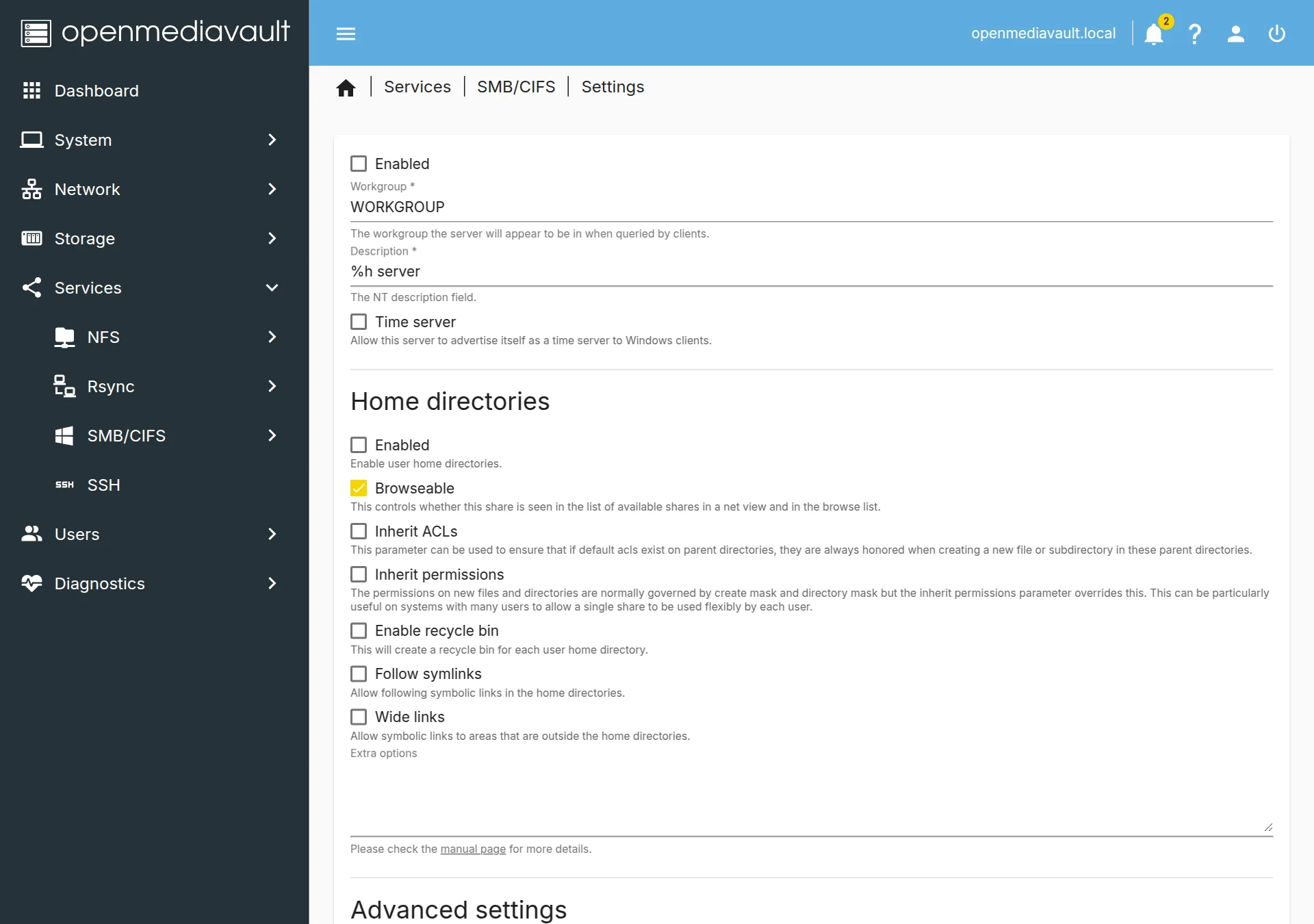
In the left menu go to Services → SMB/CIFS → Settings. Tick Enabled at the top, then click Save. OpenMediaVault shows a yellow banner — click Apply to confirm the pending change. That's the switch that makes your NAS answer on the network.
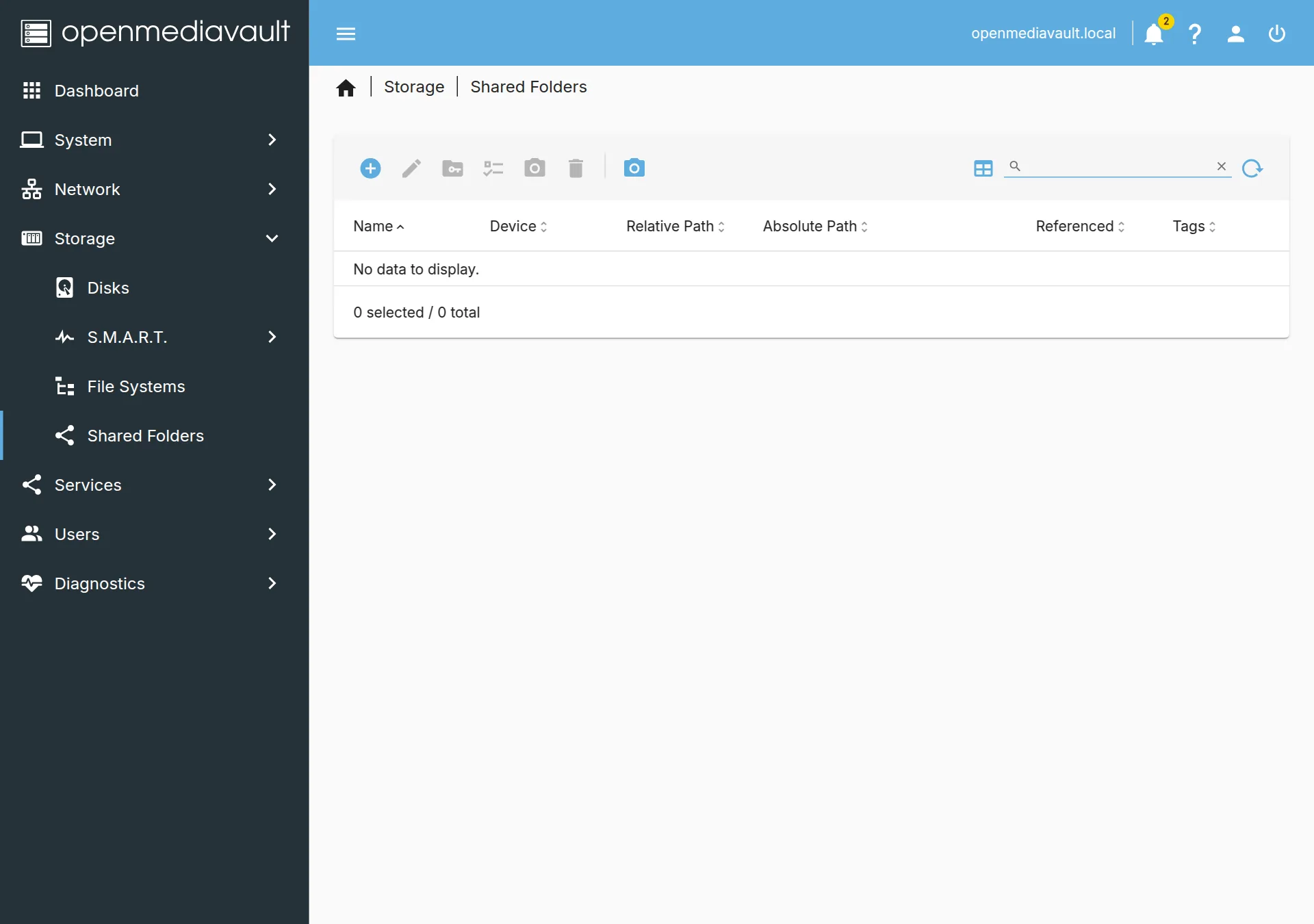
SMB shares point at a shared folder. If you don't have one yet, go to Storage → Shared Folders, click the + (Create), pick the disk/filesystem, give it a name like data, and Save. Already have folders you use? Skip to the next step.
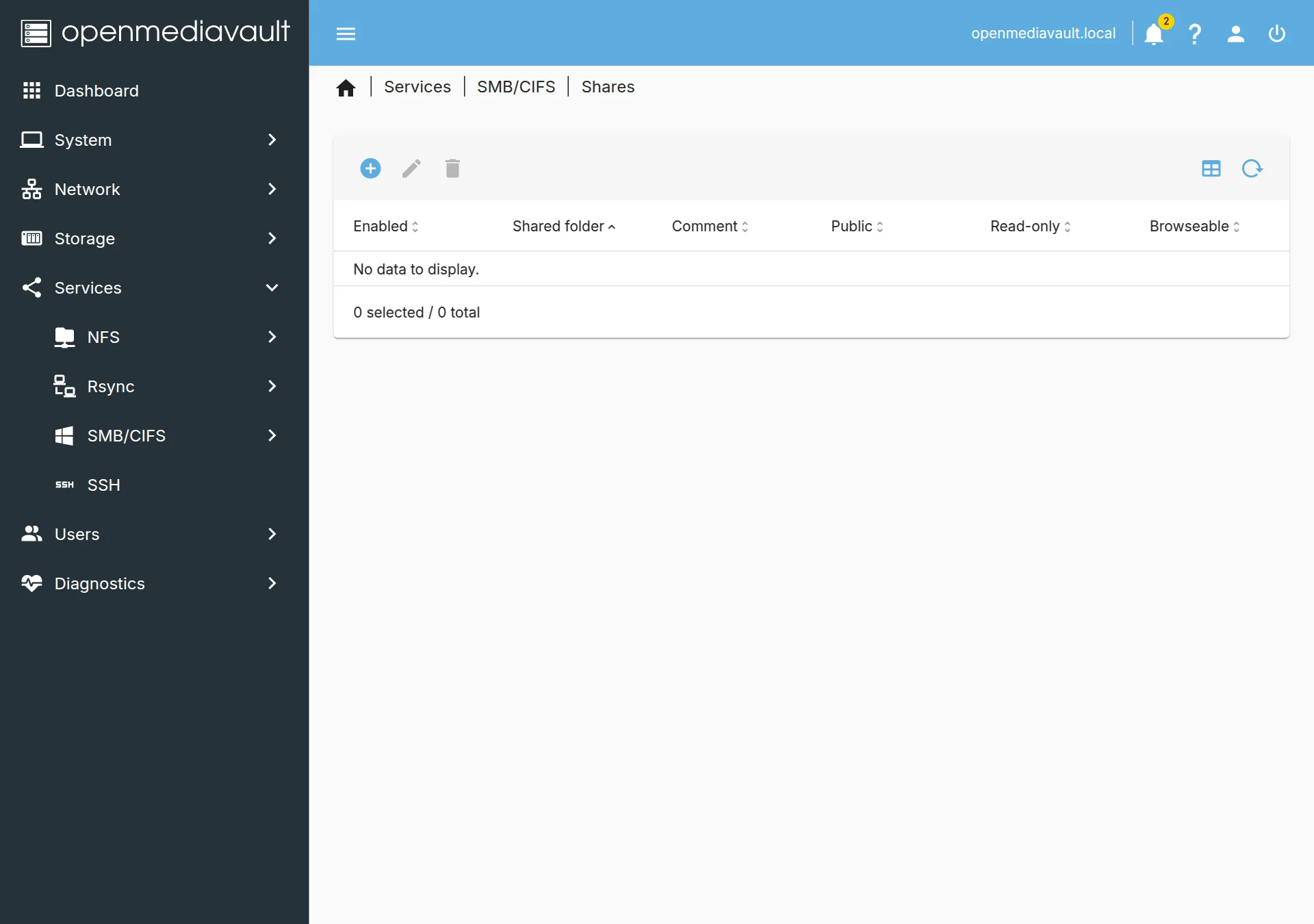
Go to Services → SMB/CIFS → Shares and click the + to add a share. Choose the shared folder from the list, and make sure Read only is off so you can save files back to it. Then Save → Apply. This is the folder RocketZero will open as a drive.
Heads-up: don't rely on the built-in home share — on OpenMediaVault it's read-only, so files look like they saved but never reach the NAS. Always map a proper writable share like the one above.
Reopen the RocketZero page on your NAS. Under On this NAS, File sharing (SMB) now shows On with a shield — it's shared over RocketZero's encrypted tunnel, not exposed to the internet. Now install the RocketZero app on your computer and open your NAS as a drive from anywhere.